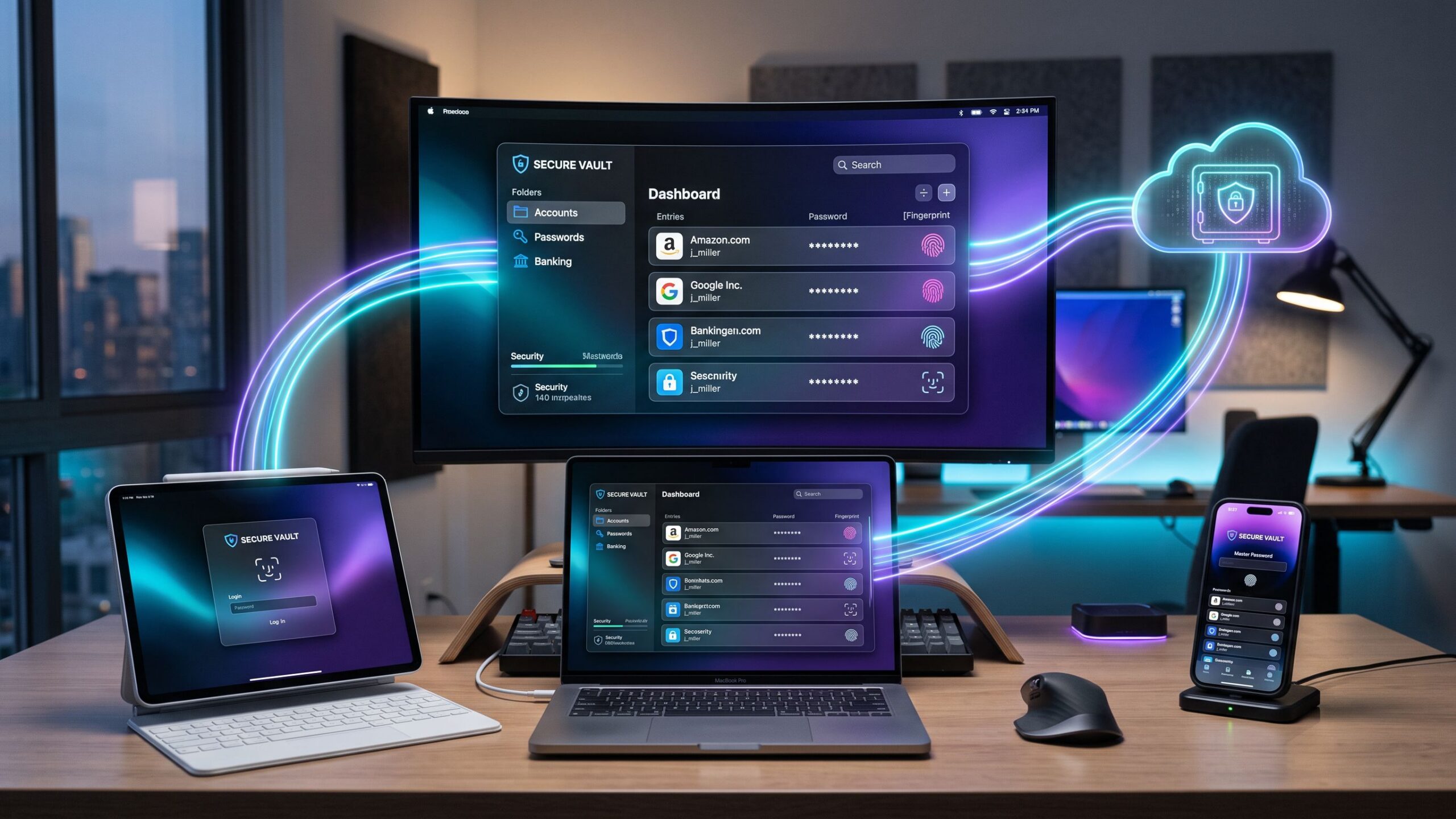
Imagine creating a complicated, virtually impossible-to-guess password on your laptop, opening the same account on your smartphone seconds later, and signing in without typing a single character. No forgotten credentials, no password reset emails, and no frustrating attempts to remember which variation of your favorite password you used. That is the convenience of a password manager designed to work across multiple devices.
Modern digital life rarely happens on just one screen. You might check your bank account on your phone, answer work emails from a laptop, browse online stores on a tablet, and stream entertainment through a desktop computer. Each device provides access to different accounts, yet remembering unique passwords for every service quickly becomes overwhelming.
Password management software solves this problem by securely storing credentials inside an encrypted vault that can be accessed across supported devices. Instead of memorizing dozens or hundreds of passwords, users rely on a single password management system to generate, organize, synchronize, and automatically fill login information.
However, using a password manager across several devices involves more than installing an application. Understanding cloud synchronization, browser extensions, biometric authentication, autofill settings, device security, and recovery options is essential for creating a reliable experience.
This comprehensive guide explains how password managers work across multiple devices, explores the best software options, walks through setup on computers and mobile devices, and reveals practical strategies for keeping your digital credentials accessible without sacrificing security.
Why Cross-Device Password Management Matters More Than Ever
The modern internet has transformed password management into a challenge that extends far beyond remembering a handful of login credentials. Between financial accounts, social media platforms, workplace applications, shopping websites, healthcare portals, and subscription services, users often maintain a substantial collection of digital identities. Managing those credentials becomes even more complicated when switching between devices. A password saved exclusively inside one browser may not automatically appear on a smartphone using a different operating system or browser. This inconsistency encourages risky habits. Users may begin reusing familiar passwords, saving credentials in unsecured notes, or sending login information to themselves through text messages simply to access accounts on another device. Cross-device password managers eliminate much of this friction by creating a centralized system for credential storage and synchronization. When a password is created or updated on one device, a cloud-synchronized password manager can make the updated record available on other authorized devices after synchronization completes. This convenience also supports stronger security habits. Users can generate unique, complex passwords without worrying about manually transferring them between computers and smartphones. The result is a more consistent login experience, fewer forgotten passwords, and reduced dependence on insecure credential-sharing methods.
How Password Managers Synchronize Across Multiple Devices
Password synchronization is the technology that makes cross-device password management possible. Rather than storing credentials independently on every device, many password managers maintain encrypted vault data that can be synchronized through cloud infrastructure. When a user saves a new password on a laptop, the password manager updates the local vault and prepares the relevant encrypted information for synchronization. The service then transfers encrypted vault data to its synchronization infrastructure, allowing other authorized devices to retrieve the updated information. Many reputable password managers use zero-knowledge architectures designed so that the provider cannot read the contents of the customer’s encrypted vault. The exact encryption methods, key management systems, and synchronization mechanisms vary between providers. For users, the experience is generally straightforward. A password created on a desktop computer becomes available on a smartphone or tablet once synchronization finishes and the device has access to the vault. However, synchronization is not always instantaneous. Internet connectivity, background application restrictions, authentication requirements, and temporary service interruptions can affect how quickly changes appear. Understanding this process helps users recognize that cloud synchronization and local vault access are related but distinct capabilities. Some password managers also support limited offline access to previously synchronized credentials, although adding or changing information while offline may require synchronization later.
Choosing the Best Password Manager for Multiple Devices
Selecting the right password manager is the foundation of a successful cross-device setup. Although many providers advertise synchronization, their device compatibility, pricing structures, and convenience features differ. Bitwarden is a compelling option for users who want broad compatibility and affordable password management. Its free personal tier has supported unlimited password storage and synchronization across multiple devices, making it attractive to people who regularly switch between different operating systems. 1Password emphasizes a polished interface, convenient organization, and strong cross-platform functionality. Its paid subscriptions support access across major computers, smartphones, tablets, and browser environments. Dashlane offers password management through supported browser and mobile experiences, with additional security features available through its subscription offerings. NordPass provides a streamlined interface and cross-platform functionality, although users should examine free-tier session limitations and premium synchronization features before choosing a plan. Proton Pass is another interesting alternative, combining password management with privacy-focused capabilities and support for multiple device environments. Built-in solutions such as Apple Passwords and Google Password Manager can also provide convenient synchronization, especially for users who primarily operate within one technology ecosystem. The best password manager is not necessarily the one with the longest feature list. It is the service that works consistently across the devices and browsers you actually use.
Free vs Premium: Do You Need to Pay for Device Synchronization?
One of the most common questions surrounding cross-device password management is whether users need a premium subscription to synchronize passwords across multiple devices. The answer depends on the provider. Some password managers include multi-device synchronization in their free offerings, while others restrict simultaneous sessions, device access, or advanced functionality. Bitwarden has traditionally been a particularly attractive free option because it allows users to synchronize their vault across supported devices without purchasing a premium membership. Other providers may offer free password storage while reserving certain convenience features for paid subscribers. Premium subscriptions can introduce additional capabilities such as advanced password sharing, encrypted file storage, security monitoring, emergency access, and expanded authentication options. However, these extras are not always necessary for basic cross-device password synchronization. Before paying for a subscription, confirm whether the free plan already supports your specific combination of devices. Someone using a Windows laptop, Android smartphone, and iPad should verify compatibility with all three environments rather than assuming every password manager behaves identically. For users primarily interested in secure password storage and autofill, a capable free password manager may provide excellent value.
Step 1: Create and Secure Your Password Manager Account
The first step toward using a password manager across multiple devices is creating an account with your selected provider. Visit the password manager’s official website or download its application from a trusted app store. Avoid unfamiliar download links, advertisements impersonating legitimate software, and unofficial installation packages. During registration, you will typically be asked to create an account password or master password. This credential protects access to your password vault and should be substantially stronger than an ordinary website password. A long, unique passphrase made from randomly selected words can provide strong protection while remaining easier to remember than a short string of unpredictable symbols. Never reuse a password already associated with another online account. Some services, such as 1Password, also provide additional account security materials, including a Secret Key. Store any recovery information securely and follow the provider’s instructions carefully. Once your account is created, enable supported multifactor authentication. An authenticator application or hardware security key can provide additional protection against unauthorized access. Review the provider’s account recovery options before storing important credentials. A password manager is most valuable when it is both secure and recoverable under appropriate circumstances.
Step 2: Install Your Password Manager on a Windows Computer
Windows computers are commonly used for work, school, gaming, and personal browsing, making them an important starting point for cross-device password management. Begin by downloading the official Windows application or browser extension from your selected provider. Many password managers offer dedicated desktop applications alongside extensions for browsers such as Google Chrome, Microsoft Edge, and Mozilla Firefox. The desktop application may provide vault management, organization, and system-level functionality, while the browser extension typically handles website autofill and password capture. After installation, sign in using your account credentials and complete any required device verification. If your provider supports biometric or operating-system-based unlocking, review the available settings and decide whether to enable them. Next, open the browser extension and confirm that it can access your vault. Visit a familiar website and test whether the extension recognizes the login fields. If the browser’s built-in password manager is also active, consider disabling its password-saving prompts to avoid confusion and duplicate credential storage. Once configured correctly, your Windows computer can become a convenient central location for managing passwords that synchronize across your other devices.
Step 3: Set Up Your Password Manager on an iPhone
Using a password manager on an iPhone can dramatically simplify everyday logins, particularly for people who regularly switch between mobile applications and websites. Start by downloading the official password manager application from the Apple App Store. Open the application, sign in to your existing account, and complete any required authentication steps. Once signed in, allow the application to synchronize your encrypted vault. Next, configure password autofill through the iPhone’s settings. On supported recent iOS versions, this generally involves navigating to Settings, General, AutoFill & Passwords, and enabling the preferred password manager. Menu labels may vary depending on the iOS version. After selecting the password manager, open a website or application that requires a login. Your iPhone should offer compatible saved credentials through its autofill interface. Many password managers also support Face ID or Touch ID for convenient vault unlocking on compatible devices. Biometric unlocking can reduce the need to repeatedly type a long master password while maintaining a convenient authentication experience. However, biometric access should complement strong device security rather than replace it. Use a secure iPhone passcode, keep iOS updated, and avoid allowing unauthorized individuals to access your unlocked device.
Step 4: Configure Password Management on Android Devices
Android smartphones offer extensive flexibility for password management, including support for third-party autofill services. Begin by installing the official password manager application through Google Play or another trusted distribution channel supported by the provider. Sign in using your existing account credentials and allow the application to synchronize your vault. Next, locate the autofill service settings on your Android device. The exact menu path varies between manufacturers and Android versions, but it is generally found within system settings related to passwords, accounts, or autofill services. Select your preferred password manager as the active autofill provider. Once configured, open a supported application or website and test the autofill functionality. Some Android devices also support fingerprint recognition or other biometric methods for unlocking compatible password managers. If autofill does not appear immediately, check whether the application has the required permissions and whether battery optimization settings are interfering with background functionality. Android’s flexibility makes it possible to create a highly customized password management experience, but careful configuration is important for reliable results.
Step 5: Synchronize Passwords Across iPads and Other Tablets
Tablets frequently occupy the middle ground between smartphones and traditional computers. They are used for entertainment, shopping, schoolwork, travel, and everyday productivity. Fortunately, many leading password managers provide tablet-compatible applications that synchronize with existing accounts. For iPads, download the supported application from the App Store and configure password autofill through the appropriate iPadOS settings. Android tablets generally follow a process similar to Android smartphones, using the device’s autofill service configuration. Once the application is installed, sign in to the same password manager account used on your other devices. Your previously synchronized credentials should become available after authentication and synchronization complete. Test several familiar websites to confirm that saved usernames and passwords appear correctly. For households where tablets are shared between multiple people, account separation becomes especially important. Avoid signing into a personal password vault on a shared device unless you understand how access is protected and how to sign out securely. Individual operating-system profiles, separate password manager accounts, and appropriate device locks can help reduce accidental exposure.
Step 6: Use Browser Extensions for Seamless Password Autofill
Browser extensions are among the most useful components of modern password management software. Instead of manually opening a password vault every time you visit a website, a browser extension recognizes supported login fields and offers relevant saved credentials. Popular password managers provide extensions for browsers such as Chrome, Firefox, Edge, and Safari, although compatibility and functionality vary. After installing the official extension, sign in to your account and confirm that the vault is accessible. When visiting a website, the extension may display a password manager icon or offer an autofill suggestion. Selecting the correct credential can populate the username and password fields automatically. Extensions can also help generate strong passwords when creating new accounts. When a website requests a new password, the password manager may offer a randomly generated credential and save it to your vault. However, users should remain alert to phishing websites. Autofill protections can help reduce certain risks, but they are not a substitute for verifying website authenticity. Always confirm that you are signing in to the correct domain before submitting sensitive credentials.
How to Keep Passwords Updated Across Every Device
One of the greatest advantages of a synchronized password manager is the ability to update credentials without manually changing them on every device. Imagine changing your email password on a desktop computer. If the password manager saves the new credential successfully, the updated record can synchronize to your smartphone and tablet. The next time you access that email account on another device, the new password should be available. However, synchronization depends on several factors, including network connectivity, application status, and account authentication. If a password update does not appear immediately, open the password manager application and check its synchronization status. Some services provide a manual synchronization option, while others synchronize automatically when the application connects to the internet. Avoid repeatedly changing passwords simply because a synchronized update has not appeared yet. Instead, confirm that the original change was saved correctly and that the destination device is connected to the appropriate account. Maintaining a consistent synchronization routine reduces confusion and helps prevent outdated credentials from accumulating across devices.
Using a Password Manager Without an Internet Connection
Cloud synchronization is convenient, but internet access is not always available. Travelers, commuters, and users experiencing network outages may still need access to important credentials. Many password managers maintain encrypted local vault data that can be accessed offline on previously authenticated devices. This means users may be able to unlock their password manager and retrieve previously synchronized credentials even without an active internet connection. However, offline functionality varies between providers, operating systems, and application configurations. Some services require periodic online authentication or may limit certain features when disconnected. Changes made while offline may remain local until synchronization becomes available. This can create complications if the same password record is edited on multiple devices before those changes synchronize. Before traveling somewhere with limited connectivity, test your password manager’s offline capabilities. Confirm that essential credentials are available and that you understand any restrictions involving authentication or synchronization. A reliable offline strategy can prevent unnecessary account access problems during travel or network disruptions.
How to Use One Password Manager Across Different Operating Systems
Cross-platform compatibility becomes particularly important when users own devices from different manufacturers. A person might use a Windows desktop at work, a MacBook at home, an Android smartphone, and an iPad while traveling. A cross-platform password manager can provide a consistent vault across these environments, reducing dependence on any single operating system. However, installation and autofill settings differ between platforms. Windows and macOS users may rely heavily on browser extensions, while iOS and Android users typically configure system-level autofill integration. The important factor is using the same password manager account across supported devices. Avoid creating separate accounts accidentally, as this can result in disconnected vaults and missing credentials. Users should also verify whether their selected subscription permits the desired number of active devices or sessions. Cross-platform password management is most effective when the provider supports every major device in your routine without imposing inconvenient restrictions.
Password Manager Security: Is Synchronizing Across Devices Safe?
Synchronizing passwords through cloud infrastructure may initially sound risky, especially when the vault contains sensitive financial and personal credentials. However, reputable password managers are designed to protect synchronized information through encryption and carefully controlled authentication mechanisms. Many services encrypt vault contents before transmitting them to cloud infrastructure, helping prevent unauthorized parties from reading stored credentials. Zero-knowledge architectures are intended to limit the provider’s ability to access customer vault contents. Nevertheless, no password manager can guarantee complete protection against every security threat. Compromised devices, phishing attacks, weak account passwords, malicious browser extensions, and stolen authentication sessions can create risks even when vault encryption is strong. For that reason, users should protect every device connected to their password manager. Install operating-system updates, use strong device locks, enable multifactor authentication, and avoid signing into sensitive accounts on untrusted computers. Review authorized devices or active sessions when your provider offers that capability. If a device is lost or stolen, follow the password manager’s official guidance for revoking access and securing the account. Cloud synchronization can be a safe and convenient approach when combined with strong security practices.
Using Biometric Authentication Across Multiple Devices
Biometric authentication has made password managers significantly more convenient by allowing users to unlock supported vaults through fingerprint recognition or facial authentication. On compatible iPhones and iPads, Face ID or Touch ID may provide quick access to stored credentials. Android devices may support fingerprint authentication or other approved biometric methods, depending on the hardware and password manager. Windows computers can sometimes integrate with Windows Hello, while supported Mac computers may offer Touch ID functionality. Biometric unlocking typically relies on authentication capabilities provided by the local device. It does not necessarily mean that a user’s fingerprint or facial information is uploaded to the password manager’s cloud servers. The exact implementation varies between services and platforms. Although biometrics improve convenience, users should still maintain a strong account password and securely preserve necessary recovery information. Biometric authentication is best understood as an additional method of accessing an already protected vault, not a universal replacement for account security credentials.
Managing Passwords on Shared or Family Devices
Shared devices create additional security challenges because several people may use the same computer or tablet. A family laptop, for example, might be used by parents, teenagers, and visiting relatives. Signing into a personal password manager on a shared operating-system account can expose sensitive information if the vault remains unlocked or credentials are automatically filled for the wrong person. The safest approach is to maintain separate user profiles whenever the operating system supports them. Family password manager subscriptions can also provide individual accounts with private vaults and carefully controlled shared collections. This allows household members to access appropriate shared credentials without exposing personal banking, email, or financial information. Parents should be particularly cautious about storing sensitive credentials inside browsers or applications accessible to young children. Automatic vault locking, device authentication, and separate accounts can help reduce accidental exposure. A shared password manager should never mean that everyone in the household automatically receives unrestricted access to every password.
Troubleshooting Passwords That Are Not Syncing
Even well-designed password managers occasionally experience synchronization problems. One common issue occurs when a device has limited internet connectivity or background application activity is restricted. If a newly saved password does not appear on another device, begin by confirming that both devices are signed in to the same account. Next, verify that the original password change was saved successfully. Open the password manager on the destination device and check whether synchronization is active. If the provider supports manual synchronization, use that option. Outdated applications can also cause compatibility problems, so ensure that the password manager and operating system are updated. Another possibility is that credentials were saved to a different vault, collection, or account than expected. For family subscriptions, confirm that the user has permission to access the relevant shared information. If the issue persists, consult the provider’s official troubleshooting documentation before reinstalling applications or deleting local data. Avoid resetting accounts or removing vault information unless you understand the potential consequences. Most synchronization issues can be resolved without compromising stored credentials.
What Happens If You Lose a Device With Your Password Manager Installed?
Losing a smartphone, laptop, or tablet can be stressful, particularly when the device contains access to sensitive accounts. Fortunately, reputable password managers generally protect stored vault information through encryption and authentication requirements. However, the level of risk depends on whether the device was locked, whether the password manager remained unlocked, and whether an unauthorized person could access the operating system. If a device is lost, begin by using the device manufacturer’s supported location, locking, or remote erase capabilities where available. Next, review your password manager’s account security settings. Some providers allow users to deauthorize devices or revoke active sessions remotely. Consider changing your password manager account password if you suspect unauthorized access, and follow the provider’s guidance regarding device revocation and key rotation. For particularly sensitive accounts, additional password changes may be appropriate. Keep in mind that changing a master password does not necessarily erase previously downloaded vault data from a lost device. Strong device encryption, automatic locking, and remote management features provide important additional safeguards. Preparing these protections before a device disappears is far easier than trying to establish them during an emergency.
Common Mistakes to Avoid When Using Password Managers Across Devices
One common mistake is creating separate password manager accounts on different devices instead of signing in to the same account. This can produce disconnected vaults and make synchronization appear broken. Another mistake is leaving multiple password-saving systems active without understanding which one is responsible for storing credentials. A browser’s built-in password manager, a third-party extension, and a mobile autofill service may all attempt to save or fill the same information. Using weak authentication credentials is another serious concern. A password manager account should be protected by a strong, unique password and supported multifactor authentication. Users should also avoid leaving vaults unlocked indefinitely, especially on shared or portable devices. Ignoring software updates can introduce compatibility and security problems. Finally, failing to preserve recovery information may create significant difficulties if the account password is forgotten or authentication devices become unavailable. Avoiding these mistakes helps create a more secure and dependable cross-device experience.
Expert Tips for a Seamless Multi-Device Password Management Experience
The most effective password management setup is one that works naturally with your everyday routine. Begin by choosing a provider that supports all your primary devices and browsers. Install the necessary applications and extensions, then configure autofill consistently across each platform. Use the password manager’s built-in generator to create strong, unique credentials whenever you register for a new account. Organize important records with clear names and appropriate vault structures so that they remain easy to locate. Enable automatic locking and biometric unlocking where supported, balancing convenience with device security. Periodically review stored credentials and remove outdated records after confirming that they are no longer needed. Maintain secure recovery information and understand the provider’s account recovery limitations. For users with many accounts, password health reports can help identify reused or weak credentials that deserve attention. Most importantly, develop the habit of saving new passwords directly into your password manager rather than relying on memory or unsecured notes. Consistency is what transforms password management software from a convenient application into a reliable long-term security system.
Final Verdict: One Password Vault, Every Device, Better Digital Security
Using a password manager across multiple devices is one of the most practical ways to simplify modern digital life while strengthening account security. Instead of remembering dozens of complicated passwords or struggling to transfer credentials between computers and smartphones, users can rely on a centralized encrypted vault that synchronizes across supported devices. The process begins with choosing a reputable password manager, creating a secure account, and installing the appropriate applications and browser extensions. From there, configuring autofill, biometric authentication, synchronization, and recovery options creates a consistent experience across laptops, desktops, smartphones, and tablets. Bitwarden stands out for users seeking a capable free solution with broad device compatibility. 1Password offers a polished premium experience, while Dashlane, NordPass, and Proton Pass provide additional alternatives with different features and pricing structures. Our Overall Recommendation: Choose a password manager that supports every device you regularly use, enables secure synchronization, and offers convenient autofill without unnecessary restrictions. Protect your vault with strong authentication, keep your devices updated, and verify that recovery information is stored safely. The true value of cross-device password management extends beyond convenience. It makes strong, unique passwords practical for everyday use, reduces reliance on insecure habits, and creates a more organized approach to protecting digital accounts. Whether you are moving between a work laptop and personal smartphone or managing an entire household of connected devices, the right password manager can make your digital life simpler, more efficient, and significantly easier to secure.
Screen Capture and Recording Software Reviews
Explore Nova Street’s Top 10 Best Screen Capture and Recording Software Tools! Dive into our comprehensive analysis of the most powerful platforms designed to transform how you record, edit, and share visuals across every device. Our detailed side-by-side comparison chart helps you pinpoint the perfect solution for screen capturing, video recording, live streaming, and post-production editing—all in real time. We break down every critical element—capture resolution, frame rate performance, audio integration, webcam overlays, annotation tools, editing flexibility, export formats, storage management, workflow automation, pricing, and cross-platform compatibility—so your creative workspace stays sharp, efficient, and seamlessly connected across Windows, macOS, iOS, Android, and the web.