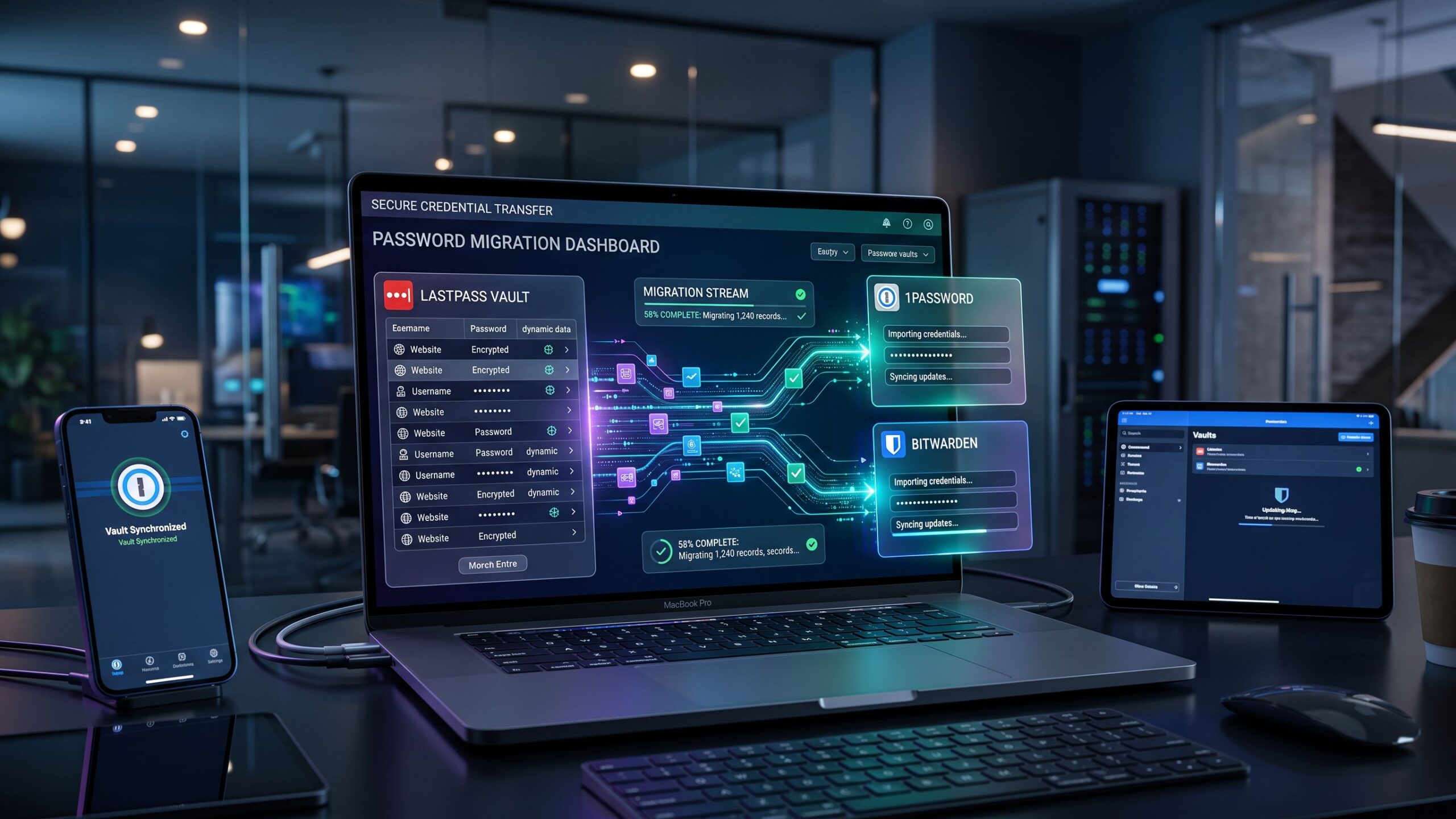
Switching password managers might sound like a digital nightmare. After years of saving login credentials, banking information, secure notes, and countless passwords inside one encrypted vault, the thought of transferring everything to another platform can feel overwhelming. Fortunately, migrating from LastPass to 1Password or Bitwarden is generally much easier than most users expect, provided the process is handled carefully.
Password managers are designed to simplify digital security, but choosing the right platform matters. Whether you are frustrated with subscription pricing, concerned about past security incidents, or simply looking for a more intuitive experience, moving to a new password manager can provide an opportunity to improve your overall cybersecurity habits.
Both 1Password and Bitwarden offer compelling alternatives to LastPass, although they approach password management differently. 1Password emphasizes polished design, streamlined usability, and premium security features, while Bitwarden combines open-source transparency with flexible pricing and a capable free subscription.
The real challenge is not deciding whether your passwords can be transferred. It is ensuring that every important credential arrives safely, sensitive export files are handled securely, and your accounts remain accessible throughout the transition.
This comprehensive guide explores everything you need to know about migrating from LastPass to 1Password or Bitwarden, including preparation, exporting credentials, importing data, troubleshooting compatibility issues, protecting sensitive information, and deciding which password manager deserves to become your new digital home.
Why Are Users Switching Away From LastPass?
LastPass has been a recognizable name in password management for years, helping individuals and businesses generate, store, and automatically fill login credentials. However, changing consumer expectations, subscription differences, and security concerns have encouraged some customers to explore alternatives. One significant factor is the history of security incidents involving LastPass. In 2022, the company disclosed breaches that ultimately involved the theft of customer vault backups and associated information. Although encrypted vault data was protected by customers’ master passwords and related cryptographic mechanisms, the incidents raised concerns about the potential risks associated with stolen encrypted vaults, particularly when weak master passwords were involved. These events reinforced an important cybersecurity principle: encryption is essential, but the strength of authentication credentials and the security of the surrounding infrastructure also matter. Pricing is another reason users consider switching. Some consumers prefer free password managers with fewer restrictions, while others want premium subscriptions that offer more convenient sharing, additional security features, or a different interface. Usability also plays an important role. A password manager should feel effortless during everyday browsing, whether users are accessing accounts from desktop computers, smartphones, or tablets. Migrating away from LastPass does not automatically guarantee stronger security. Both the new provider and the user’s account protection habits matter. However, switching can be an opportunity to review weak passwords, eliminate reused credentials, enable multifactor authentication, and strengthen access to sensitive accounts.
LastPass vs 1Password vs Bitwarden: Understanding Your Options
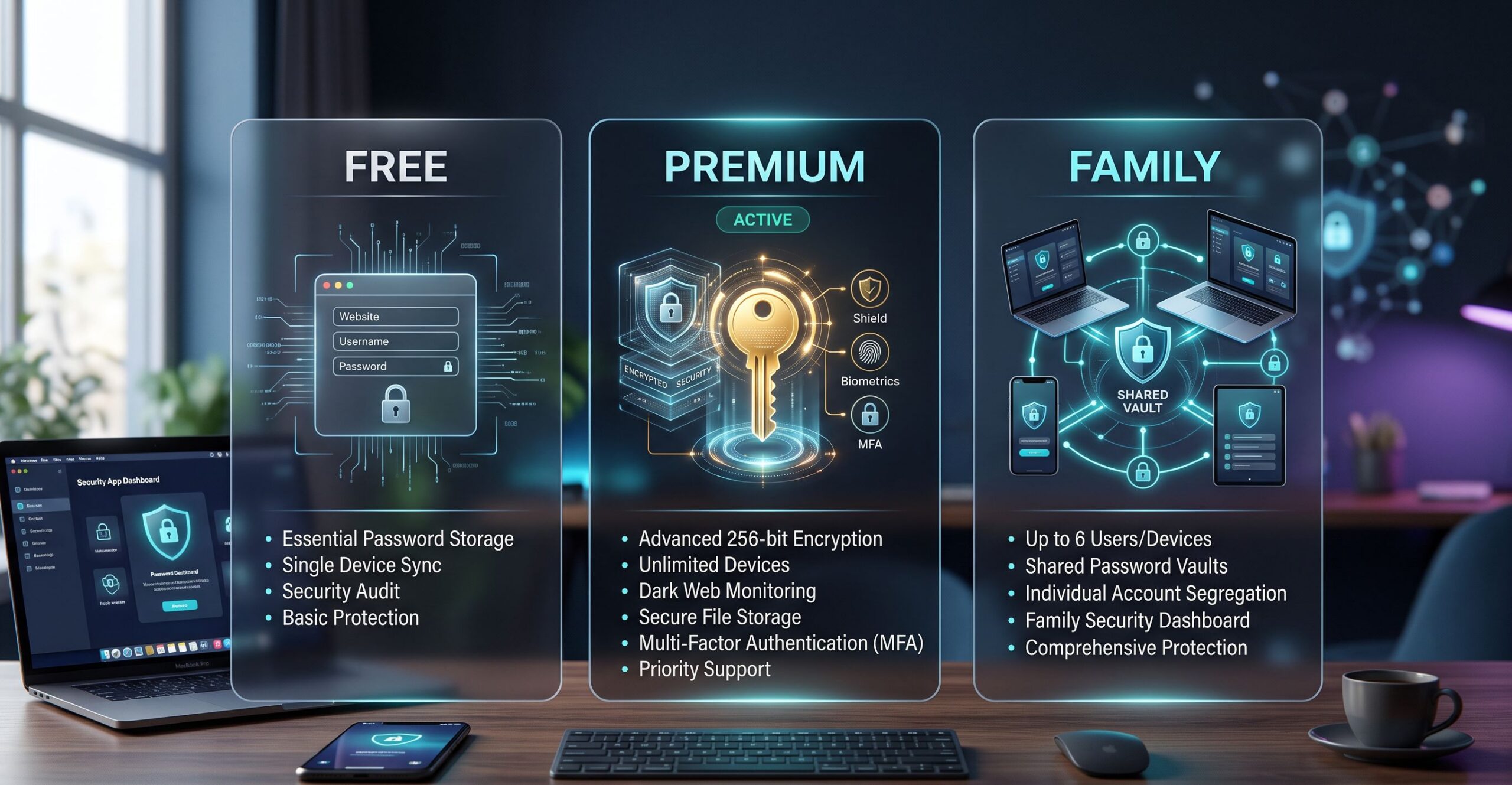
Before exporting your password vault, it is important to understand the differences between the two destination platforms. Although 1Password and Bitwarden perform many of the same essential functions, their pricing structures, interfaces, and advanced capabilities appeal to different audiences. 1Password focuses on a refined user experience, organized vault management, and premium features designed for individuals, families, and businesses. Its applications provide password generation, autofill, secure sharing, and security insights through a polished interface. One of its notable features is Watchtower, which helps identify vulnerable or compromised credentials. The service also uses a Secret Key alongside the account password as part of its account protection design. Bitwarden, meanwhile, appeals to users who prioritize affordability, flexibility, and transparency. Its open-source software and security documentation make it particularly attractive to technically inclined users, while its free personal offering provides substantial everyday functionality. Bitwarden supports major operating systems, browsers, and mobile devices. Premium and family memberships introduce additional features, but many users can manage their passwords without purchasing a subscription. Both platforms offer encrypted credential storage and cross-device access, but their approaches to account organization and recovery differ. For users seeking an elegant premium experience, 1Password may be the more appealing destination. For those who want a capable free option and greater flexibility, Bitwarden is particularly compelling. The best choice ultimately depends on your budget, preferred interface, device ecosystem, and security requirements.
Before You Begin: Preparing Your LastPass Vault for Migration
A successful password manager migration begins before any data is exported. Taking a little time to prepare can prevent missing credentials, duplicate entries, and frustrating login problems later. Start by confirming that you can successfully sign in to your LastPass account. Make sure your master password is available and that you can complete any required multifactor authentication challenges. Next, review the contents of your vault. Look for duplicate entries, outdated website addresses, abandoned accounts, and passwords that no longer work. Removing unnecessary records can make the new password manager easier to organize. However, avoid deleting credentials simply because they appear unfamiliar. Some accounts may be associated with older purchases, financial records, or services you rarely access. Pay particular attention to secure notes, payment information, addresses, custom fields, and attachments. Not every type of stored information transfers through standard password export formats. It is also wise to confirm that you have access to the email account associated with your new password manager. Registration, account verification, and recovery procedures may depend on it. Before importing anything, create your destination account and configure its authentication settings. Choose a strong, unique account password and enable supported multifactor authentication. Finally, use a trusted, updated computer for the migration. Avoid public computers, shared workstations, and devices that may be compromised. These preparations create a safer foundation for transferring sensitive information.
Understanding the Biggest Migration Risk: Unencrypted Export Files
The most important security consideration during password manager migration is how exported credentials are handled. LastPass commonly supports exporting vault data into a comma-separated values file, commonly known as CSV. Although this format is convenient because many password managers can read it, CSV files generally contain password information in readable text. That means anyone who gains access to the exported file may be able to view its contents without knowing your LastPass master password. This is fundamentally different from storing credentials inside an encrypted password vault. For that reason, export files should be treated as highly sensitive documents. Save them only to a trusted local location, avoid sending them through email or messaging applications, and do not upload them to ordinary cloud storage services. Before exporting, consider whether your computer automatically synchronizes its Downloads or Documents folders with a cloud backup provider. If so, select a local destination that is not automatically synchronized. Do not open the exported file in an online spreadsheet application or upload it to a third-party conversion website. Once the migration has been completed and verified, securely remove temporary plaintext copies. On modern solid-state drives, ordinary deletion may not guarantee physical erasure of every data block, so full-disk encryption and avoiding unnecessary copies are important safeguards. The safest migration is one that minimizes how long unencrypted password data exists outside a protected vault.
Step 1: How to Export Your Passwords From LastPass
The first practical stage of migration involves exporting the login credentials stored in LastPass. On a trusted desktop computer, open the LastPass browser extension or web vault and sign in to your account. Depending on the current interface, locate the advanced options, account settings, or export section. Choose the option to export your vault data. LastPass may request your master password or additional authentication before allowing the export. Select the supported CSV export method and follow the instructions displayed by the application. Depending on the LastPass version and browser, the export may download as a CSV file or display data that must be saved manually. Follow the current official export instructions rather than assuming that every interface behaves identically. If you need to save displayed CSV data, preserve its original structure and encoding. Incorrect formatting can cause import errors or misplaced fields. Store the resulting file in a local, non-synchronized folder and give it a recognizable temporary filename. Do not edit the file unless necessary to resolve a specific compatibility problem. Opening and resaving CSV files through spreadsheet software can unintentionally modify special characters, dates, or long numeric strings. Most importantly, do not delete your LastPass vault after exporting. The original vault should remain available until you have confirmed that the destination password manager contains all necessary information. At this stage, your passwords have been exported, but they have not yet been transferred into their new encrypted home.
Step 2: How to Import LastPass Passwords Into 1Password
Migrating from LastPass to 1Password can be relatively straightforward because 1Password provides import functionality for supported password manager formats. Begin by creating or signing in to your 1Password account through the official application or website. If you are a new user, complete the initial account setup and securely preserve the recovery information provided. 1Password uses an account password and a Secret Key as important components of its account security model. Keep your Emergency Kit or equivalent recovery details in a secure location separate from your ordinary password records. Next, open the import functionality in the 1Password application or supported web interface. Look for the option to import data from another password manager and select LastPass when available. Depending on the current 1Password version, the importer may offer a direct migration workflow or a file-based import option. If the importer requests a LastPass CSV file, select the local file you previously exported. Review the destination vault and any available import settings before continuing. 1Password should process supported records and create corresponding items in the selected vault. Once the import finishes, examine the results carefully. Check that website addresses, usernames, passwords, and relevant notes appear correctly. Some information may require manual attention, particularly unsupported custom fields, attachments, or specialized record types. If the importer offers direct migration without requiring a plaintext file, consider that supported option because it may reduce the need to create and handle an exposed CSV export. After importing, keep LastPass available until you have verified that your most important accounts work correctly in 1Password.
Step 3: How to Import LastPass Passwords Into Bitwarden
Bitwarden also provides import functionality designed to help users move credentials from other password management services. Begin by creating a Bitwarden account through its official website or application. Choose a strong, unique master password and configure available multifactor authentication options before importing sensitive information. Next, sign in to the Bitwarden web vault and locate the import data feature. The exact navigation labels may vary as the interface evolves. Choose LastPass CSV as the source format when available. Selecting the correct format is important because password managers may organize exported fields differently. Upload or select the LastPass CSV file from your trusted local folder and choose the appropriate destination vault or organization if the interface requests one. Start the import process and wait for Bitwarden to process the supported records. Once complete, open your vault and inspect the imported credentials. Verify that usernames, passwords, website addresses, and notes appear in the correct fields. Bitwarden’s importer may not automatically reproduce every LastPass folder, sharing relationship, attachment, or specialized item exactly as it existed in the original vault. Some organizational details may need to be recreated manually. Also remember that repeated imports can create duplicate records, depending on the workflow. If something goes wrong, investigate the cause before importing the same file again. After verifying the imported information, install the Bitwarden browser extension and mobile application on your preferred devices. Your credentials should then become available through Bitwarden’s supported synchronization and autofill features.
What Happens to Secure Notes, Payment Cards, and Attachments?
Password manager migration involves more than transferring usernames and passwords. Many people also store payment card details, secure notes, software licenses, recovery codes, addresses, and sensitive documents inside their vaults. Unfortunately, these records do not always transfer as smoothly as ordinary website logins. CSV exports typically prioritize structured text data, and different password managers interpret specialized fields differently. A secure note containing plain text may transfer successfully, while a note with unusual custom fields could require manual correction. Payment card information may also need to be recreated or verified, depending on the export format and importer. Attachments present an additional challenge. Files attached to LastPass records may not be included in a standard CSV export, meaning they must be handled separately. Before canceling LastPass, inspect each important non-password record and confirm that its information exists in the destination vault. For sensitive attachments, use a secure transfer method supported by the destination service rather than placing documents into an unsecured temporary folder unnecessarily. If you have shared folders or credentials managed through a LastPass business account, additional administrative migration steps may be necessary. The essential lesson is simple: a successful password import does not automatically mean that every type of vault data has migrated.
How to Verify That Every Password Transferred Correctly
Import completion messages are encouraging, but they should never be treated as definitive proof that every credential transferred correctly. Begin by comparing the approximate number of records in your original LastPass vault with the number imported into 1Password or Bitwarden. A difference in item counts does not necessarily indicate missing data, since providers may organize record types differently. However, significant discrepancies deserve investigation. Next, review your most important accounts individually. Banking websites, primary email services, healthcare portals, cloud storage accounts, and financial applications should receive particular attention. Open each account through its official website or application and confirm that the new password manager can locate and autofill the correct credentials. Check usernames carefully, especially when several accounts exist for the same website. Pay attention to passwords containing special characters, unusual symbols, or long strings. Import formatting problems can occasionally affect these values. Review secure notes, recovery codes, and any other sensitive information that was included in the migration. Finally, test the new password manager across the devices you actually use. A migration is only truly complete when your important accounts are accessible, your credentials appear correctly, and your new password manager functions reliably during everyday browsing.
Avoiding Duplicate Passwords and Import Errors
One of the most common migration frustrations involves duplicate credentials. This can happen when the same CSV file is imported multiple times or when the destination vault already contains saved logins. Duplicates are not necessarily a direct security threat, but they can create confusion when autofill presents several nearly identical accounts. Before importing, review whether the destination vault contains existing records. If you already use 1Password or Bitwarden, consider how the imported data will interact with those entries. After migration, inspect repeated records and determine which credentials are current. Do not automatically delete older entries without checking whether they belong to different accounts or contain unique information. Another potential problem involves incorrectly mapped fields. A username might appear in a notes field, or a website address might be missing. These issues can occur when the selected import format does not match the actual exported file. If errors appear, verify that you selected the appropriate LastPass import format and that the CSV file has not been modified. Specialized records may require manual correction, particularly when they contain unsupported fields. Taking time to organize the imported vault can make the new password manager easier and safer to use over the long term.
Securing Your New Password Manager After Migration
Transferring credentials is only the beginning. Once your information arrives in 1Password or Bitwarden, securing the new account should become the next priority. Start with the account password or master password. Choose a long, unique password that is not reused anywhere else. A memorable passphrase made from several randomly selected words can provide strong protection when created properly. Next, enable multifactor authentication using a supported authenticator application, hardware security key, or another strong method. For Bitwarden users, review available two-step login options and securely store recovery information. For 1Password users, protect the Secret Key and Emergency Kit information, and configure supported multifactor authentication where appropriate. Review your vault’s security settings, including automatic locking, biometric unlocking, and device authorization. Avoid leaving your password vault permanently unlocked on shared or unattended devices. It is also wise to evaluate password health and identify reused or weak credentials. Migrating to a new password manager does not automatically change the passwords stored inside it. If an old credential was already exposed, importing it into a new encrypted vault does not eliminate that exposure. A successful transition should therefore include improving the security of the accounts themselves.
Should You Change All Your Passwords After Leaving LastPass?
One of the biggest questions surrounding LastPass migration is whether users should change every password after transferring their vault. The answer depends on individual risk factors, but changing important passwords is a sensible precaution, particularly for users whose vaults may have been affected by historical security incidents. The 2022 LastPass breaches raised concerns because attackers obtained copies of encrypted customer vault data. Encrypted vaults are designed to resist unauthorized access, but the strength of protection depends partly on the cryptographic implementation and the strength of the customer’s master password. If an attacker possesses an encrypted vault copy, changing the password used to unlock the current vault does not retroactively protect the stolen copy. For that reason, users concerned about potential exposure should prioritize changing credentials for their most sensitive accounts. Start with your primary email account, financial services, cloud storage, and accounts containing sensitive personal information. Then address reused passwords, weak credentials, and accounts that provide access to other services. Use the new password manager to generate long, unique passwords for each account. Enable multifactor authentication wherever possible, especially for financial and email services. Changing every password immediately may be impractical for users with hundreds of accounts, but a systematic, risk-based approach can significantly improve protection. The goal is not simply to move old passwords into a new location. It is to reduce the potential consequences of previously exposed credentials.
Switching Browser Extensions Without Creating Conflicts
After importing credentials, users should configure their browsers to work smoothly with the new password manager. If both LastPass and the destination password manager remain active, their autofill features may compete to fill the same login fields. This can cause duplicate prompts, incorrect credential suggestions, or confusion about which application is saving newly created passwords. Begin by installing the official 1Password or Bitwarden browser extension from a trusted source. Sign in to the extension and confirm that your imported credentials are available. Test autofill on several familiar websites before making additional changes. Once the new extension is functioning correctly, disable the LastPass extension to prevent conflicts. You may also want to review your browser’s built-in password-saving settings. Multiple password managers operating simultaneously can create unnecessary confusion. However, do not permanently delete LastPass data until the migration has been thoroughly verified. The transition should be gradual enough to preserve access while ensuring that only the intended password manager handles future logins.
Migrating Passwords Across Smartphones and Tablets
A password manager migration is not complete until the new service works on your mobile devices. Both 1Password and Bitwarden provide applications for supported iOS and Android devices, allowing users to access synchronized credentials outside their desktop browsers. After installing the destination application, sign in and confirm that your imported vault contents appear correctly. On an iPhone or iPad, open the system’s password autofill settings and select the new password manager as an enabled autofill provider. Exact menu names can vary by operating system version. Android users can similarly configure the preferred autofill service through supported system settings. Test the functionality with a familiar application or website. Biometric authentication may also be available, allowing supported devices to unlock the vault through Face ID, Touch ID, fingerprint recognition, or other platform-specific mechanisms. These conveniences should be configured alongside appropriate device security, including a strong screen lock. Once mobile synchronization and autofill are working properly, your new password manager can become the central location for credentials across your digital devices.
Migrating a Family or Shared LastPass Vault
Family password manager migrations require additional planning because multiple people may depend on shared credentials. Before transferring information, identify which records belong to individual users and which credentials are intentionally shared. 1Password Families provides individual accounts and shared vault functionality, allowing household members to maintain private information while accessing selected shared records. Bitwarden family-oriented offerings use individual vaults and organization-based sharing capabilities to manage credentials among authorized members. However, shared LastPass folders do not necessarily convert directly into equivalent structures on either destination platform. You may need to recreate shared vaults, collections, or organizational permissions manually. Invite family members only after the destination environment has been properly configured. Make sure everyone understands which credentials are private and which are shared. It is also important to verify that shared accounts function correctly before removing access to the original LastPass environment. For families managing numerous household subscriptions and financial accounts, a carefully organized migration can significantly improve long-term convenience.
Common Migration Mistakes That Can Put Your Passwords at Risk
Even a straightforward password manager migration can create unnecessary security risks when important precautions are overlooked. One of the most serious mistakes is leaving an exported CSV file in an easily accessible folder after the import is complete. Because the file may contain readable passwords, it represents a valuable target for anyone who gains access to the device. Another common mistake is uploading the export to an online file conversion service. Sensitive password data should never be submitted to an unfamiliar third-party website simply to resolve formatting problems. Deleting the original vault too early is another avoidable error. Some credentials, secure notes, attachments, or shared records may not transfer correctly. Users should also avoid importing credentials repeatedly without checking for duplicates. A further mistake is assuming that migration automatically improves the security of every account. Previously exposed or reused passwords remain risky until they are replaced. Finally, neglecting multifactor authentication can leave the new password manager unnecessarily vulnerable. The safest migration combines careful file handling, thorough verification, and improved account security practices.
When Should You Delete Your LastPass Account?
Deleting your LastPass account should be one of the final steps in the migration process, not the first. Before considering deletion, confirm that all essential credentials have been transferred and that the new password manager works across your preferred devices. Review secure notes, payment information, attachments, shared records, and recovery codes separately. Make sure you have updated important passwords where appropriate and that your new vault has strong authentication protections. If you have an active LastPass subscription, review its billing and cancellation settings. Account deletion and subscription cancellation may involve separate procedures, depending on how the membership was purchased. Once everything has been verified, follow LastPass’s current official account deletion instructions if you no longer wish to maintain the account. Remember that deleting a LastPass account does not necessarily erase previously stolen encrypted vault copies or immediately eliminate every backup retained under applicable data retention policies. That is another reason changing sensitive credentials matters. After closing the old account, remove the LastPass browser extension and applications from devices where they are no longer needed. Your new password manager should then become the primary location for storing and managing future credentials.
1Password vs Bitwarden: Which Is the Better Migration Destination?
Choosing between 1Password and Bitwarden ultimately comes down to priorities. 1Password is particularly appealing to users who want a polished interface, streamlined organization, convenient family sharing, and integrated security tools. Its premium-focused model makes sense for consumers who value an extensive feature set and are comfortable paying for it. Bitwarden offers an especially attractive alternative for users who prioritize affordability, transparency, and flexibility. Its capable free tier makes it possible to adopt strong password management practices without immediately purchasing a subscription. Both services support importing LastPass credentials, although exact import methods and supported record types may change over time. For individuals seeking a straightforward, budget-conscious transition, Bitwarden is often an excellent starting point. For users who prefer a highly refined experience and are interested in premium features, 1Password may be worth the additional expense. Neither platform can guarantee immunity from cyberattacks, and both require users to maintain strong authentication practices. The better choice is the service that fits your needs and encourages consistent, secure password habits.
Final Verdict: Making the Switch From LastPass Safely and Successfully
Migrating from LastPass to 1Password or Bitwarden does not have to be complicated. With careful preparation, secure export handling, and thorough verification, users can transfer their credentials while minimizing disruption to their digital lives. The most important step is protecting sensitive information throughout the transition. Unencrypted CSV exports should be handled carefully, kept away from untrusted services, and removed once they are no longer necessary. Equally important is verifying that all essential information has transferred successfully. Passwords, secure notes, attachments, and shared credentials may require separate attention depending on the export and import methods used. For users concerned about historical LastPass security incidents, migration also presents an opportunity to replace sensitive passwords, eliminate reused credentials, and strengthen multifactor authentication. 1Password stands out for its polished design, premium functionality, and family-friendly organization. Bitwarden offers impressive flexibility, a capable free tier, and strong appeal for budget-conscious consumers. Our Overall Recommendation: Choose 1Password if you prioritize a refined premium experience and convenient family features. Choose Bitwarden if you want affordable, flexible password management with a strong free option. Regardless of your destination, verify every important credential, secure your new account, and update passwords that may have been exposed. The ultimate goal is not simply to move passwords from one digital vault to another. It is to create a safer, more organized, and more dependable foundation for your online security. With the right preparation and a thoughtful migration strategy, switching password managers can become more than a software change. It can be an opportunity to take meaningful control of your digital identity.
Screen Capture and Recording Software Reviews
Explore Nova Street’s Top 10 Best Screen Capture and Recording Software Tools! Dive into our comprehensive analysis of the most powerful platforms designed to transform how you record, edit, and share visuals across every device. Our detailed side-by-side comparison chart helps you pinpoint the perfect solution for screen capturing, video recording, live streaming, and post-production editing—all in real time. We break down every critical element—capture resolution, frame rate performance, audio integration, webcam overlays, annotation tools, editing flexibility, export formats, storage management, workflow automation, pricing, and cross-platform compatibility—so your creative workspace stays sharp, efficient, and seamlessly connected across Windows, macOS, iOS, Android, and the web.