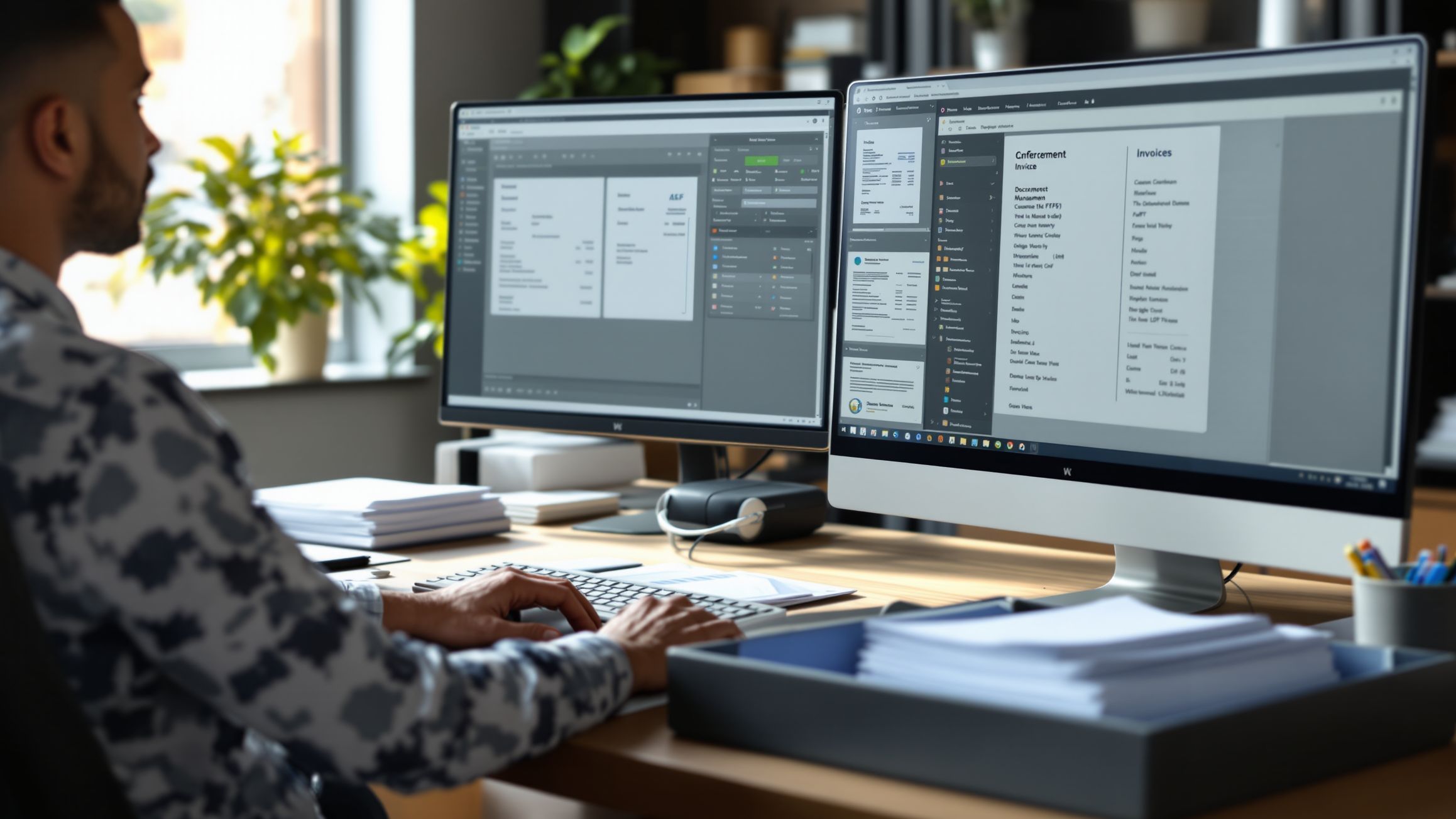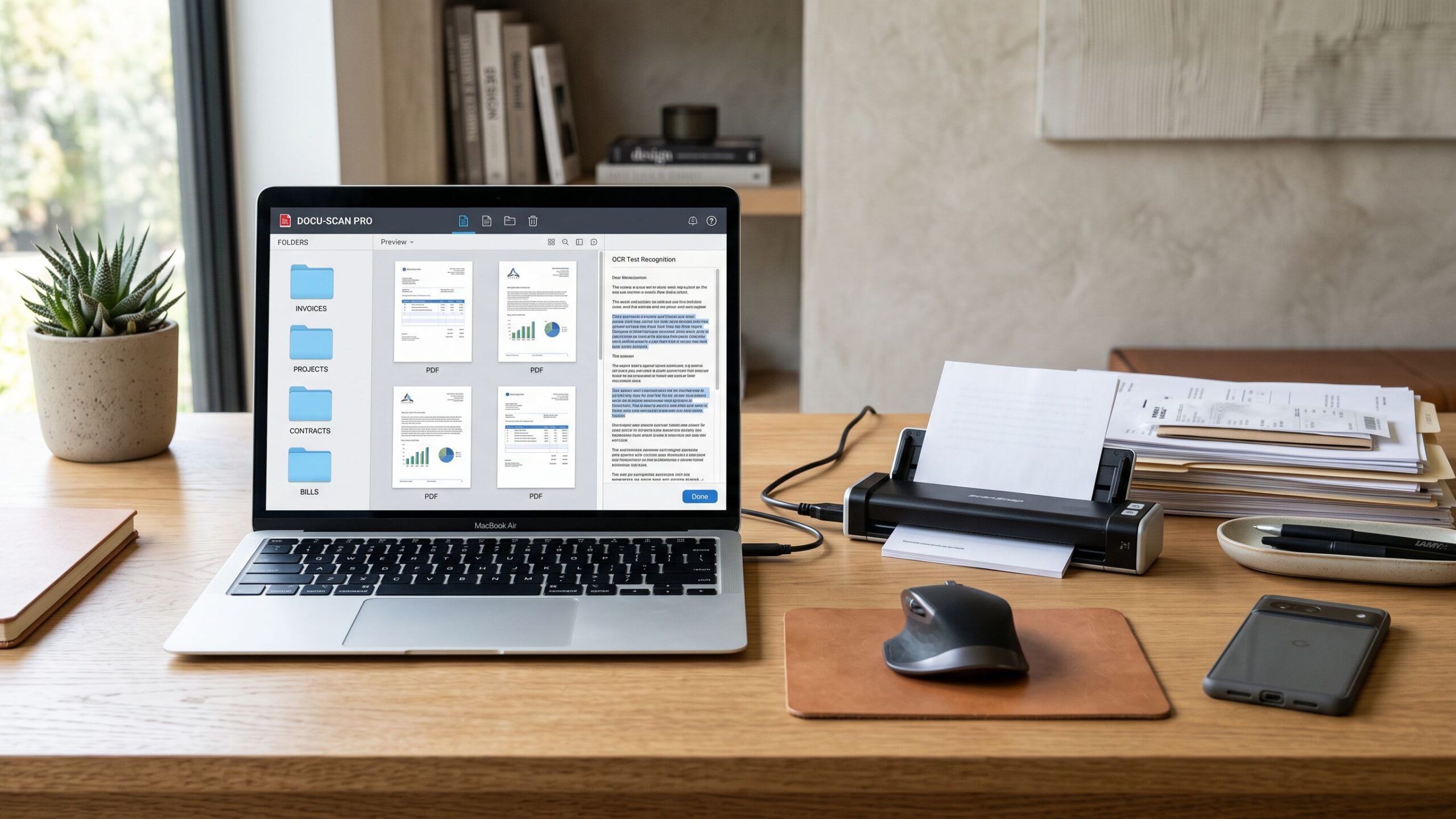
Paperwork might seem old-fashioned in an increasingly digital world, but contracts, receipts, invoices, tax forms, handwritten notes, and important records still find their way onto our desks. For Mac users, the right document scanning software can transform scattered papers into organized, searchable, professional-quality digital files in seconds. Whether you’re managing a small business, organizing household paperwork, preserving family photographs, or digitizing hundreds of office documents, choosing the best scanning software can make an enormous difference in efficiency and productivity. Apple computers are celebrated for their polished interfaces, dependable performance, and seamless ecosystem integration, and modern document scanning software has evolved to complement these strengths. Today’s applications go far beyond capturing a basic image, offering optical character recognition (OCR), intelligent document enhancement, automatic page detection, searchable PDF creation, cloud synchronization, and advanced file management capabilities. However, not every scanning program delivers the same experience. Some specialize in fast, straightforward scanning, while others provide sophisticated editing and document processing tools. Certain applications work best with dedicated scanners, while others turn an iPhone into a portable scanning device that integrates beautifully with a Mac. In this comprehensive Nova Streets review, we’re exploring the best document scanning software for Mac users, examining their standout features, practical advantages, potential limitations, and ideal use cases. From Apple’s convenient built-in utilities to professional-grade document processing platforms, these programs demonstrate how powerful paperless productivity can become.
1. VueScan: The Versatile Scanning Solution for Mac Users
VueScan has earned a strong reputation among scanning enthusiasts, photographers, and professionals who need dependable control over their scanning hardware. Developed by Hamrick Software, this versatile application is particularly appealing to Mac users whose scanners have limited support from their original manufacturers. One of VueScan’s greatest strengths is its extensive hardware compatibility. It supports thousands of scanner models, including many flatbed scanners, document feeders, and film scanners. This broad compatibility can be especially valuable when upgrading to a newer version of macOS makes an older manufacturer’s scanning software unusable. Compatibility still depends on the exact scanner model and operating system, so checking VueScan’s supported-device database before purchasing is essential. VueScan offers detailed control over resolution, color balance, cropping, file formats, and image adjustments. Users can produce PDFs for office documents, high-quality image files for photographs, and other outputs depending on the scanner and software edition. Higher-tier features can include OCR and advanced image processing. The interface is functional rather than particularly fashionable, and newcomers may find its extensive settings intimidating. However, the flexibility becomes a significant advantage for users who want precise results rather than relying entirely on automatic adjustments. For example, a photographer digitizing old family negatives can use VueScan’s advanced image controls, while an office worker can configure efficient settings for scanning multipage documents. The software’s ability to accommodate such different workflows makes it one of the most adaptable options available. Our Verdict: VueScan is an excellent choice for Mac owners who prioritize scanner compatibility, detailed scanning controls, and the ability to keep older hardware productive.
2. Adobe Acrobat Pro: Professional Scanning Meets Powerful PDF Management
Adobe Acrobat Pro is one of the most comprehensive document processing solutions available for Mac users. Although it is primarily known as a PDF editing platform rather than a dedicated scanner driver, its powerful document management capabilities make it a compelling choice for professionals who regularly work with scanned paperwork. Acrobat Pro excels at turning scanned pages into useful digital documents. Its OCR technology can recognize text within image-based PDFs, making documents searchable and, in suitable cases, editable. This capability is especially valuable for digitizing contracts, financial records, archived reports, and printed reference materials. The software also offers page organization, document merging, compression, annotations, redaction tools, electronic signature workflows, and security options. Users can combine multiple scanned documents into a single organized PDF, rearrange pages, correct mistakes, and prepare files for professional distribution. Integration with Adobe’s cloud services makes it convenient to access documents across supported devices and collaborate with colleagues. For businesses handling substantial paperwork, these capabilities can justify the subscription expense. Imagine a law office digitizing hundreds of client documents. Instead of storing disconnected image files, employees can create searchable PDFs, organize related materials, add annotations, and prepare documents for secure distribution. However, Adobe Acrobat Pro may be excessive for someone who only needs to scan occasional receipts or household documents. It is also important to distinguish PDF processing from scanner control: users may need Apple’s Image Capture, manufacturer software, or another scanning utility to acquire documents from particular scanners before processing them in Acrobat. Our Verdict: Adobe Acrobat Pro is a premium option for Mac users who need far more than scanning, particularly those managing complex PDF editing and professional document workflows.
3. Apple Image Capture: The Best Free Built-In Scanner Utility
Sometimes the best software is already installed on your computer. Apple’s Image Capture is a built-in macOS utility that provides a simple and effective way to scan documents without purchasing additional software. The application supports compatible scanners and multifunction printers recognized by macOS. Once a device is connected and available, users can select scanning options such as resolution, color mode, document size, and destination folder. Depending on the hardware, Image Capture can also work with automatic document feeders and additional scanner settings. Its greatest advantage is simplicity. Rather than navigating a complicated professional dashboard, users can quickly scan a letter, receipt, application, or printed document and save the resulting file. Image Capture also integrates naturally with macOS file management, making it easy to organize scans in Finder, move them into iCloud Drive, or open them in Preview for additional adjustments. This straightforward approach is especially appealing to students, families, and home-office users who want dependable scanning without additional subscriptions or complicated software installations. The trade-off is limited advanced functionality. Image Capture does not provide the extensive OCR, batch document processing, or sophisticated PDF editing capabilities found in premium alternatives. Compatibility and available controls also depend on the scanner. Nevertheless, for users who primarily need clean digital copies of printed materials, these limitations may not matter. The convenience of opening an existing Mac application, selecting a scanner, and saving a document is difficult to beat. Our Verdict: For Mac users who need reliable basic scanning without additional expense, Apple Image Capture is an excellent starting point and may be all the software they need.
4. ABBYY FineReader PDF for Mac: A Strong Choice for OCR Accuracy
ABBYY has long been associated with optical character recognition technology, and FineReader is particularly interesting for users who want to transform scanned documents into searchable, reusable information. Unlike software focused primarily on capturing images, FineReader emphasizes extracting meaningful text from printed pages. Its recognition technology is designed to handle complex layouts, multiple languages, and documents containing combinations of paragraphs, tables, and other structured elements. For researchers, accountants, legal professionals, and administrative teams, this can dramatically reduce manual transcription. Instead of retyping a lengthy printed report, users can process a scanned version and export recognized content into supported editable formats. The program is also valuable for creating searchable archives. A folder containing hundreds of image-only PDFs becomes considerably more useful when its documents can be searched by keywords. Imagine a university researcher working with decades of printed journals. By converting scanned pages into searchable text, the researcher can locate specific terminology and references much faster than by manually reviewing every page. OCR performance is not flawless, however. Low-resolution scans, handwriting, unusual fonts, damaged paper, and complex page layouts can introduce recognition errors. Critical financial, medical, or legal documents should always be checked against the originals. Mac users should also verify the specific FineReader edition before purchasing because the macOS offering has historically differed from the Windows version in available tools and licensing. This distinction matters particularly for buyers expecting the same advanced editing features across both platforms. Our Verdict: ABBYY FineReader is a compelling option for text-heavy scanning projects where accurate recognition and document conversion matter more than a simple scan button.
5. ExactScan: Dedicated Document Scanning for macOS
ExactScan is designed specifically for scanning documents, making it an appealing alternative to large, multifunction PDF platforms. Developed by ExactCODE, the application focuses on helping users capture, process, and organize physical paperwork efficiently. Its support for compatible scanners and document feeders makes it especially useful for offices that regularly digitize invoices, correspondence, receipts, and administrative records. Depending on the edition and scanner, users can access features such as automatic cropping, blank-page detection, image enhancement, and OCR. These automation tools become increasingly valuable when scanning large batches. Removing blank pages and correcting document orientation can reduce the repetitive work involved in preparing digital archives. Consider a small accounting firm receiving stacks of printed invoices each week. Rather than manually scanning and correcting every page, employees can use compatible document-feeder hardware and automated processing settings to streamline the workflow. ExactScan’s specialized approach is also attractive to users who prefer software designed around macOS rather than an oversized document management suite. Its emphasis on scanning productivity makes it particularly relevant for users whose primary objective is digitizing physical records rather than performing extensive PDF editing afterward. The main consideration is hardware compatibility. Before investing, buyers should confirm that their exact scanner model is supported and that the current software release works with their macOS version. Users should also compare the available editions to determine whether advanced OCR and automation features are included. Our Verdict: ExactScan deserves serious consideration from Mac users who regularly scan physical documents and want a focused application with useful automation features.
6. Nitro PDF Pro: Scanning and PDF Productivity Combined
Mac users familiar with the former PDFpen application may recognize its capabilities in Nitro PDF Pro, which builds on the PDFpen product lineage. Nitro PDF Pro offers an extensive selection of tools for working with digital documents, including editing text, rearranging pages, adding annotations, completing forms, and converting PDFs into other formats. Its OCR capabilities are particularly relevant to scanning workflows. Users can process image-based documents and make their contents searchable, helping transform scanned paperwork into organized digital information. The application is also useful for combining several scanned files into one document. A business owner, for example, might scan separate receipts, invoices, and supporting records before assembling them into a single PDF package for accounting. Nitro PDF Pro can be an appealing alternative to subscription-focused PDF software, although buyers should review current licensing terms rather than assume that every version is sold as a one-time purchase. The application is particularly attractive to professionals who want to perform everyday PDF tasks without constantly switching between multiple programs. Users can annotate contracts, reorganize reports, prepare forms, and improve scanned documents within a familiar desktop environment. Its biggest limitation is that it is fundamentally a PDF productivity application, not a universal replacement for dedicated scanner-control software. Users whose main priority is acquiring images from specialized scanning hardware may prefer VueScan or ExactScan. Nevertheless, for anyone whose scanning workflow continues into editing, organizing, and distributing PDFs, Nitro PDF Pro offers a practical combination of features. Our Verdict: Nitro PDF Pro is a strong option for Mac users who want to organize, edit, and enhance scanned documents within a capable PDF workspace.
7. NAPS2: An Open-Source Option Worth Considering
NAPS2, short for Not Another PDF Scanner 2, is an appealing choice for people who want useful scanning capabilities without the expense of commercial software. Originally well known among Windows users, NAPS2 also offers macOS support. Its feature set includes scanning from supported devices, importing existing images, arranging pages, saving documents as PDFs, and performing OCR. The application’s straightforward design is a major advantage. Users can build a multipage document, rotate pages, remove unwanted scans, and export a completed PDF without navigating an unnecessarily complex interface. OCR support makes NAPS2 especially interesting for anyone building a searchable archive of printed documents. It also provides a practical way to experiment with digital document management before investing in premium software. For students, freelancers, and home-office users, avoiding recurring software costs can be a meaningful benefit. NAPS2 demonstrates that free software does not necessarily mean sacrificing essential productivity features. However, Mac users should pay close attention to installation requirements, scanner compatibility, and differences between platforms. Certain device drivers and scanning backends may behave differently on macOS than on Windows. NAPS2 also lacks the broad commercial document collaboration ecosystem associated with products such as Adobe Acrobat. Users requiring advanced document security workflows, sophisticated PDF editing, or enterprise collaboration may eventually need additional tools. Still, its combination of affordability, OCR, and straightforward scanning functionality makes it an attractive contender. Our Verdict: NAPS2 is an excellent free alternative for users who want practical scanning and OCR capabilities, provided their Mac and scanning hardware are compatible.
8. Apple Notes and Continuity Camera: Scan Documents Without a Traditional Scanner
Not every scanning task requires a dedicated flatbed scanner. For Mac users who also own an iPhone or iPad, Apple’s built-in document scanning features offer an impressively convenient alternative. The Notes app can capture paper documents using the device’s camera, automatically identify page boundaries, adjust perspective, and save multiple pages together. With Apple’s Continuity features, compatible devices can also capture documents directly into supported Mac applications. This workflow is ideal for scanning receipts, handwritten notes, classroom assignments, signed paperwork, and other everyday documents. Imagine receiving a printed agreement that needs to be emailed immediately. Instead of connecting a scanner, you can capture the pages with your iPhone and access the resulting digital document on your Mac. The integration between Apple devices makes this approach especially appealing to people who frequently switch between mobile and desktop workflows. Students can digitize lecture handouts, travelers can preserve receipts, and small-business owners can capture paperwork while away from the office. The simplicity is excellent, but camera scanning has limitations. Poor lighting, shadows, curved pages, and camera movement can reduce image quality. Large batches are also generally more efficient with an automatic document feeder. Users requiring advanced OCR conversion, detailed image controls, or complex PDF editing may need to supplement Apple’s built-in features with additional software. Nevertheless, for everyday scanning, the convenience of using devices you already own is a major advantage. Our Verdict: Apple’s built-in camera scanning features are among the most convenient options for everyday paperwork, especially for users already invested in the Apple ecosystem.
Understanding OCR: The Feature That Makes Scanned Documents Truly Useful
Optical character recognition is one of the most important technologies in modern document scanning software. Without OCR, a scanned document is often little more than a picture of a page. Although the image may look perfectly readable, the computer may not recognize its contents as text. OCR changes that relationship by analyzing characters within scanned images and converting them into machine-readable information. Depending on the software, this allows users to search for keywords, copy text, or export document content into editable formats. For businesses, the productivity benefits can be substantial. Instead of manually examining dozens of scanned invoices to locate a supplier’s name, employees can search an OCR-enabled archive. Students can search digitized lecture materials, researchers can extract passages from printed publications, and homeowners can locate information inside archived paperwork. However, OCR quality depends on several factors, including image resolution, lighting, page condition, language, and document formatting. For ordinary printed text, scanning at approximately 300 dots per inch is often a practical starting point. Smaller text or specialized archival work may benefit from higher resolutions. When evaluating software, look beyond whether OCR is advertised and consider how easily recognized text can be searched, corrected, exported, and preserved. Some applications emphasize searchable PDFs, while others specialize in reconstructing editable documents. Understanding this difference helps ensure that the selected software matches the intended workflow.
Scanner Compatibility: Why Your Hardware Matters
Even the most sophisticated scanning application becomes frustrating when it cannot communicate with your scanner. Mac compatibility involves more than checking whether software supports macOS. The scanner itself must also be recognized through a compatible driver, scanning protocol, or application-specific connection method. Apple’s Image Capture works particularly well with devices supported by macOS scanning technologies. VueScan and ExactScan can provide alternative compatibility paths for certain models, including some devices no longer supported by their manufacturers. Users with automatic document feeders should verify whether the software supports multipage scanning, duplex capture, and feeder controls. These features can dramatically improve efficiency when processing lengthy contracts or stacks of invoices. Scanner resolution is another important consideration. Higher resolution can preserve fine details, but it also creates larger files and may increase processing time. For everyday business documents, moderate resolution settings are generally sufficient, while archival photographs and detailed illustrations may require more careful adjustments. Before purchasing commercial software, confirm the scanner’s exact model number, your Mac’s operating system version, and any available trial or compatibility documentation. Taking a few minutes to verify these details can prevent frustrating compatibility problems and unnecessary purchases.
Cloud Integration, Security, and Document Privacy
Convenience matters, but document security deserves equal attention. Scanned files frequently contain sensitive information, including addresses, financial records, identification documents, and confidential business correspondence. Software that integrates with cloud storage can make documents easier to access across devices, but users should understand where their files are stored and whether any processing occurs on remote servers. Local scanning and OCR processing may be preferable for organizations with strict confidentiality requirements. Password protection, encryption, access controls, and secure document-sharing features can also help protect sensitive records. Mac users should consider how their scanning workflow integrates with Finder, iCloud Drive, and other approved storage platforms. The objective is to create a system that is convenient without sacrificing control over important information. For businesses handling regulated information, choosing software should also involve reviewing relevant security documentation, privacy policies, and organizational compliance requirements. A well-designed scanning workflow should include sensible file naming, organized storage locations, dependable backups, and appropriate permissions. After all, creating digital copies of important documents is only valuable when those files remain secure, accessible, and easy to locate.
Free vs. Paid Scanning Software: Is Premium Worth It?
Free scanning software has become remarkably capable, making premium applications unnecessary for many casual users. Apple Image Capture can handle straightforward scanner-based tasks, while Apple Notes provides convenient mobile capture. NAPS2 adds another potential free option for users interested in OCR and multipage PDF creation. Paid software becomes more attractive when document volume, technical requirements, or workflow complexity increases. VueScan may justify its cost by extending the usefulness of compatible scanning hardware. ExactScan can save time through dedicated scanning automation. ABBYY FineReader emphasizes sophisticated text recognition, while Adobe Acrobat Pro and Nitro PDF Pro offer extensive PDF processing capabilities. The smartest purchasing decision involves estimating how frequently advanced features will actually be used. Someone scanning five receipts per month probably does not need the same software as an accounting department digitizing hundreds of documents every week. Subscription pricing can be worthwhile when ongoing updates, cloud collaboration, and advanced editing tools are essential, while other licensing models may appeal to users seeking predictable software expenses. Rather than choosing the most expensive application, prioritize the capabilities that eliminate repetitive tasks and improve document quality. A carefully selected free program can outperform an expensive application when its features align more closely with the user’s needs.
How to Choose the Best Scanning Software for Your Mac
The ideal scanning application should feel like a natural extension of your workflow. For home users, simplicity and affordability are usually the most important considerations. Apple’s built-in tools offer an excellent foundation without requiring additional purchases. Small-business owners may benefit from OCR, automatic document feeders, searchable PDF creation, and efficient file organization. VueScan, ExactScan, or a capable PDF editor may provide a more productive experience depending on the hardware involved. Professionals managing contracts, reports, and confidential documents should pay particular attention to editing features, document security, and collaboration capabilities. Adobe Acrobat Pro and Nitro PDF Pro are especially relevant in these situations. Researchers and users digitizing extensive printed archives may find ABBYY’s recognition capabilities valuable, while photographers and scanner enthusiasts may prefer VueScan’s detailed hardware controls. Finally, consider long-term compatibility. macOS updates, scanner replacements, and changing software licenses can affect the usefulness of a scanning application. Choosing a regularly maintained product with clear compatibility information can help protect your investment. Testing the software with several representative documents before committing to a purchase is one of the most effective ways to determine whether it meets your expectations.
Final Verdict: Which Document Scanning Software for Mac Is Best?
The best document scanning software for Mac users is not necessarily the program with the most features. It is the one that makes converting physical paperwork into useful digital information faster, easier, and more dependable. VueScan earns our recommendation for the best dedicated all-around scanning solution, particularly for users who need broad scanner compatibility and detailed control. Its flexibility makes it valuable for both routine paperwork and more specialized scanning projects. Adobe Acrobat Pro is our preferred premium PDF workflow solution for professionals who need OCR, editing, document organization, and collaboration tools beyond basic scanning. Apple Image Capture wins for straightforward free scanner-based capture, while Apple’s Notes and Continuity features provide exceptional convenience for users who prefer scanning with an iPhone. For OCR-focused projects, ABBYY FineReader remains worth investigating. ExactScan offers a dedicated scanning approach, Nitro PDF Pro provides versatile PDF productivity tools, and NAPS2 presents an appealing open-source alternative. Ultimately, the right software can turn a desk full of paperwork into a clean, searchable, accessible digital library. Whether you’re preserving important memories, simplifying business operations, or finally organizing years of accumulated documents, the best Mac scanning tools make going paperless feel less like a chore and more like a genuine productivity upgrade. With the right combination of software, compatible hardware, and thoughtful organization, your Mac can become the centerpiece of an efficient document management system that saves time, reduces clutter, and keeps important information within easy reach.
Document Scanning Software Programs Reviews
Explore Nova Street’s Top 10 Best Document Scanning Software Programs! Dive into our comprehensive analysis of the most powerful tools designed to transform how you scan, digitize, and manage documents across every device. Our detailed side-by-side comparison chart helps you pinpoint the perfect solution for document scanning, OCR text recognition, PDF creation, image enhancement, and secure archiving—all in real time. We break down every critical element—scan accuracy, OCR quality, file format support, image cleanup, batch processing, searchability, cloud storage integration, automation features, pricing, and cross-platform compatibility—so your document workflow stays clean, efficient, and seamlessly connected across Windows, macOS, iOS, Android, and the web.