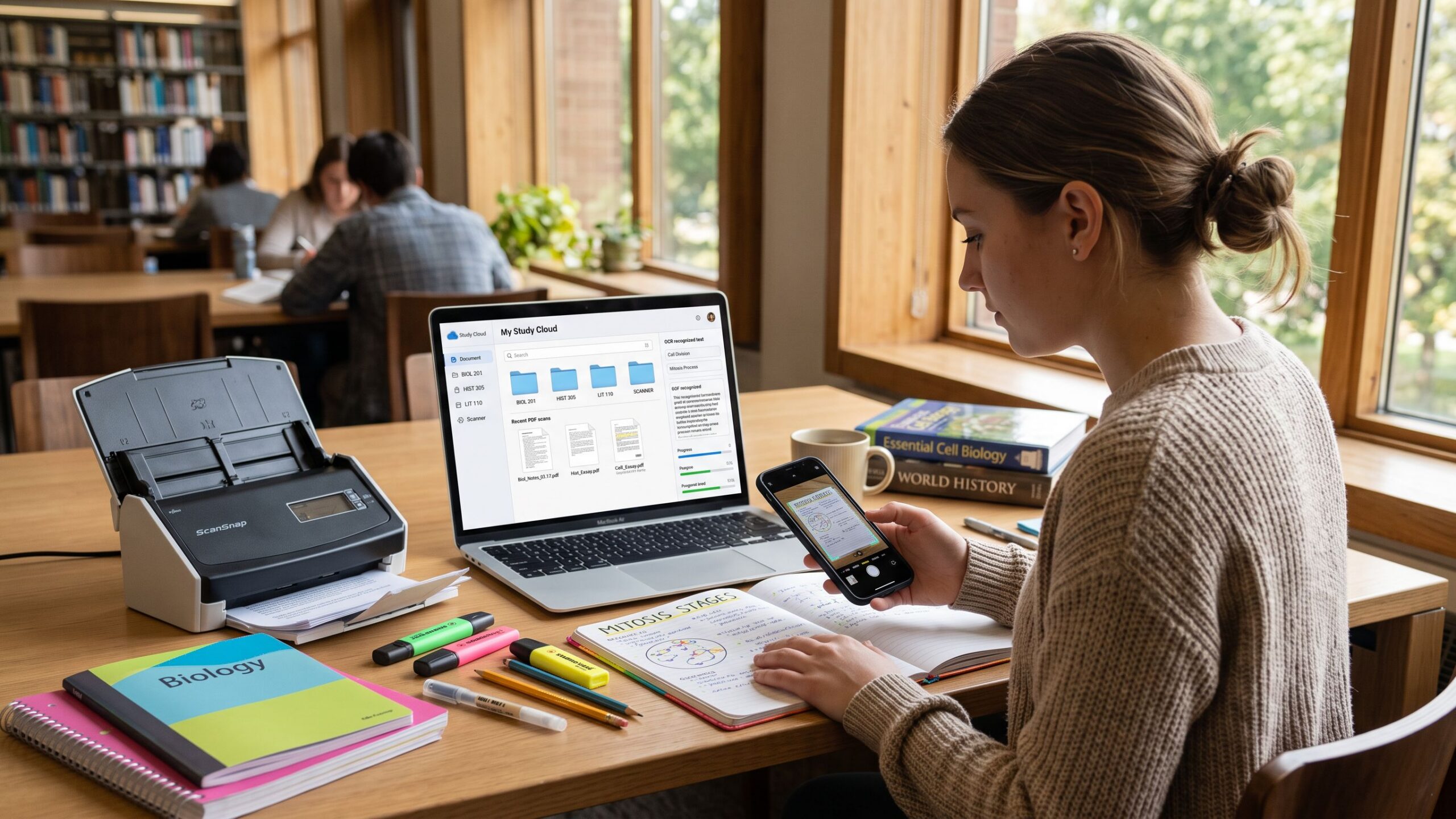
Document scanning software has become essential in nearly every corner of modern life. The world generates more paper, more printed forms, more invoices, more legal documents, and more receipts than ever before—and yet almost every workflow demands digital access, searchable text, secure storage, and fast retrieval. Modern scanning tools bridge that gap, turning shelves of physical documents into organized digital archives. But today’s best scanning programs do much more than snap a picture of a page. They correct distortions automatically, enhance legibility, detect text through sophisticated OCR engines, export into dozens of formats, route files to cloud storage, integrate with mobile apps, and streamline collaboration across teams. Some tools focus on enterprise-scale automation; others excel at mobile capture, personal record-keeping, academic archiving, or preserving historical documents. Each program in this list brings its own strengths, philosophies, and target users.
#1: Gold Award: Adobe Acrobat Pro DC

Adobe Acrobat Pro DC remains the most comprehensive and dominant force in document scanning and PDF management because it offers a full ecosystem rather than a single-purpose tool. When people think of PDFs, they think of Adobe—and for good reason. Adobe created the PDF format in the early 1990s to preserve document formatting across all platforms. Decades later, Acrobat Pro DC continues to evolve into a powerhouse that merges scanning, editing, OCR, converting, sharing, and secure collaboration all within the same environment. This historical advantage allows Acrobat to function seamlessly across devices and industries, becoming a universal standard for digital documents.
Acrobat’s scanning capability is exceptionally refined. Unlike basic scanner utilities that simply capture an image, Acrobat intelligently analyzes the document as it scans. It identifies skewed angles and automatically straightens the page. It boosts clarity, enhances faint text, removes shadowing from book folds, and equalizes brightness across the image. These enhancements produce cleaner files that are far easier to read, print, or archive. The integrated OCR engine converts scanned pages into fully selectable and searchable text, a critical feature for long-term document management. Users who deal with high volumes of legal contracts, academic papers, financial records, or government forms appreciate how Acrobat preserves layout accuracy while making the text fully usable.
Another defining strength of Acrobat Pro DC is its tight integration with Adobe Scan, the mobile app that allows scanning directly from a smartphone. While many scanning apps exist, Adobe’s ecosystem ensures that a document captured on mobile instantly syncs to the cloud and becomes available in Acrobat on desktop or tablet. This seamless handoff between devices dramatically simplifies the process for professionals who often work while traveling, meeting with clients, or stepping outside the office. Whether the user scans a receipt at a restaurant or captures a multi-page contract on the go, Acrobat ensures the document lands exactly where it belongs in the workflow.
Once a document is scanned, Acrobat’s editing tools come into play. Users can rearrange pages, add annotations, apply highlights, insert comments, remove sections using redaction tools, and even edit text as if the document originated digitally. Acrobat also supports form creation, making it possible to convert scanned paper forms into fillable, interactive digital versions. Export options include Word, Excel, PowerPoint, and image formats, giving users the flexibility to repurpose content or continue working in other software environments. Export results tend to be highly faithful to the original formatting, thanks to Adobe’s long-standing refinement of conversion technologies.
Security is another reason Acrobat Pro DC ranks so highly. Users can encrypt files, add password protection, restrict printing, block copying, and apply digital signatures. These capabilities are vital for sensitive industries such as law, healthcare, government, and finance. Acrobat also includes version history, cloud backups, review tools, and team-sharing options that support enterprise collaboration. The software scales from individual freelancers to corporate departments handling thousands of documents per month.
The primary downsides of Acrobat relate to pricing and scope. Because it is a premium subscription with extensive features, it may be more than a casual home user needs. Some people feel overwhelmed by its many tools and menus, especially if they only perform basic scanning tasks. Despite this, Acrobat remains unmatched in capability and remains the most complete solution on the market. For professionals who live in PDFs, who require accuracy, and who rely on dependable long-term file management, Adobe Acrobat Pro DC stands as the gold standard.
#2: Silver Award: ABBYY FineReader PDF

ABBYY FineReader PDF stands as the industry’s most respected and advanced OCR-focused document scanning solution, widely recognized for delivering unmatched accuracy, precision, and layout preservation. Unlike many scanning programs that treat OCR as an add-on, FineReader is fundamentally built around intelligent text recognition. This makes it the top choice for professionals, scholars, archivists, law firms, financial analysts, government agencies, and multinational teams that depend on flawless conversion of printed or scanned documents into editable, searchable, and analyzable digital files. FineReader is not just “good” at OCR—it consistently outperforms nearly every competitor when dealing with complex formatting, unusual fonts, multilingual documents, or scanned materials that suffer from imperfections like faded ink, uneven lighting, or low contrast.
One of the defining strengths of FineReader is its ability to handle intricate layouts with exceptional fidelity. Where many OCR tools struggle with multi-column pages, academic journals, tables, footnotes, marginal notes, diagrams, or dense legal text, FineReader excels. Its neural-network-powered recognition engine analyzes page geometry, distinguishes between text blocks and formatting elements, and reconstructs documents in a way that preserves the original structure. This means that when you export a scanned document to Word or Excel, you often get a near-perfect digital version: tables translate into real spreadsheets, headers remain aligned, paragraphs stay intact, and spacing mimics the original printed design. For researchers or professionals who depend on accuracy for citations, cross-referencing, or automated data extraction, this precision is invaluable.
Another major advantage of ABBYY FineReader is its support for a massive range of languages. Many scanning tools support English and a limited selection of European languages, but FineReader’s database includes nearly every widely used language and many that rarely appear in mainstream OCR engines. This is crucial for global corporations, international organizations, universities, translation agencies, and archival institutions. Whether the user is digitizing historical documents, analyzing multinational financial records, or converting foreign-language contracts, FineReader handles the task with a high degree of correctness and reliability. FineReader’s scanning interface is designed for professional-grade control without sacrificing usability. Users can import documents from flatbeds, sheet-fed scanners, multifunction printers, and even mobile captures. Before running OCR, FineReader offers a robust suite of cleanup tools: deskewing, brightness correction, smoothing, color adjustment, background removal, noise reduction, and edge refinement. These enhancements not only improve clarity but significantly boost OCR accuracy by giving the recognition engine cleaner images to analyze. For long scanning sessions or high-volume archiving projects, these improvements save enormous time and prevent repeated rescans.
One of FineReader’s most distinctive features is its ability to compare documents—even when one version is a clean digital file and the other is a scanned image. This comparison tool detects differences at the text level, highlighting changes that may not be immediately visible. For legal professionals, compliance officers, editors, contract managers, and government reviewers, this function is transformative. It eliminates the tedious manual process of visually scanning two documents side-by-side and helps ensure accuracy in revision tracking, auditing, and verification workflows. FineReader also includes automation features suited for businesses and heavy users. Hot-folder processing allows users to designate specific directories that FineReader will monitor. When new documents are added, the software automatically processes them with OCR, exports them in the chosen formats, and routes them into folders or connected systems. This automation removes repetitive manual tasks and is extremely useful in mailrooms, document conversion centers, legal intake departments, accounting offices, and university archives.
The pros of FineReader are extensive: its OCR accuracy is often regarded as the best available, it handles complex formatting with grace, it supports a global range of languages, and it includes tools that go far beyond what casual scanning utilities offer. Its export formats are robust, its layout reconstruction is meticulous, and its automation features streamline large-scale digitization projects. In short, FineReader is built for people who cannot afford errors in text conversion.
The cons primarily relate to cost and scope. FineReader is a premium professional tool, and its pricing reflects that. Some users may find its interface more technical than consumer-friendly options. It also lacks the full document-editing suite of Adobe Acrobat Pro, which means users who want heavy editing or signing capabilities often pair FineReader with another PDF tool. However, for pure scanning and OCR excellence, FineReader is unmatched. Professionals who regularly work with multilingual documents, dense academic texts, old archives, legal files, financial statements, or complex layouts will find FineReader indispensable. Its accuracy reduces editing time, eliminates errors, and preserves the integrity of original documents. For anyone whose job depends on precise text extraction, ABBYY FineReader PDF remains the definitive choice and earns its place near the top of this list.
#3: Bronze Award: Adobe Scan

Adobe Scan has rapidly become the leading mobile-first document scanning app because it combines convenience, intelligence, automation, and seamless integration with Adobe’s larger document ecosystem. While most scanning software revolves around desktop hardware, Adobe Scan is built for the reality of modern workflows—where people capture documents in cars, conference rooms, kitchens, coffee shops, classrooms, airports, construction sites, and everywhere in between. With nothing but a smartphone camera, Adobe Scan can turn receipts, contracts, IDs, handwritten notes, invoices, business cards, whiteboards, and even posters into sharp, clean digital documents. It is one of the few mobile apps that feels strong enough to replace a traditional scanner for many people.
What sets Adobe Scan apart is its sophisticated capture intelligence. The app automatically detects edges, even in challenging lighting or odd angles, and instantly adjusts the frame to isolate the document. Perspective correction transforms skewed shots into flat, straightened scans. Built-in image enhancement boosts clarity, reduces shadows, and improves text readability. These corrections happen almost instantly, minimizing the need for the user to manually re-capture documents or fiddle with settings. The result is a high-quality scan using nothing more than a handheld device—and that alone has changed the daily workflows of countless professionals who once depended on office equipment.
Adobe Scan also excels in text recognition. Once a document is captured, the app automatically applies OCR to turn text within the scan into searchable and selectable content. This means a user can photograph a receipt at a restaurant, save it as a PDF, and later search for any word inside the file on their computer. This capability makes Adobe Scan especially useful for expense tracking, academic research, and quick note digitization. The OCR engine is surprisingly accurate for a mobile tool, handling multiple fonts, small print, and even slightly faded text with impressive consistency. For power users, this feature becomes invaluable as their archive of mobile-captured documents grows.
Perhaps the most powerful aspect of Adobe Scan is its connection to Adobe Acrobat and Adobe Document Cloud. With this integration, a scan captured on mobile automatically syncs to the cloud and appears in Adobe Acrobat Pro DC and other Adobe apps on desktop, tablet, or web. This cohesive workflow eliminates tedious steps like emailing scans to yourself or transferring files manually. A salesperson can capture a signed agreement on their phone and immediately open it on their office desktop moments later. A student can photograph class notes and review them on their laptop before a test. A contractor can snap a picture of a work order on-site and have it ready for invoicing on their computer. This seamless continuity is what elevates Adobe Scan from a simple mobile utility into an indispensable professional tool.
The app’s user interface emphasizes simplicity while still offering flexibility. Users can reorder pages, crop manually, adjust brightness, apply filters, or retake specific pages without starting the entire scan over. The organizational tools within the app—such as folders, tags, and automatic naming suggestions—help users maintain order even when capturing documents rapidly throughout the day. The app’s smart naming system often identifies content from the scan itself and proposes a file name that reflects the document type or date, which is a surprisingly helpful automation touch.
Adobe Scan also includes features tailored for specific types of documents. For example, its business card scanning mode automatically extracts contact information and allows the data to be saved into a digital address book. The whiteboard mode enhances handwritten content and removes glare. The app handles multi-page documents smoothly, allowing users to capture dozens of pages in a single session. Batch scanning works quickly, and the app’s speed rarely feels like an obstacle even in fast-paced environments.
Pros of Adobe Scan include its accessibility (anyone with a smartphone can use it), its robust OCR, the excellent image correction, and the smooth integration with Adobe’s broader document ecosystem. The free tier offers surprisingly strong functionality, making it accessible to students, freelancers, and casual users. For those who subscribe to Adobe Acrobat Pro DC, Adobe Scan becomes even more powerful, unlocking advanced editing, exporting, and collaboration features.
Cons are few but worth noting. Since Adobe Scan relies on a smartphone camera, image quality can vary based on lighting, device quality, and lens condition. While its automatic corrections mitigate many of these issues, glossy documents or low-light conditions can still present challenges. Additionally, some advanced features—like deeper export formats or integration with editing tools—require an Adobe subscription. For users who do not already use Adobe’s ecosystem, this may feel like a limitation.
Despite these minor drawbacks, Adobe Scan remains the most polished, versatile, and professionally capable mobile scanning solution available. It democratizes scanning by removing the need for hardware, supports high-quality document capture wherever the user happens to be, and provides a direct pipeline into the most widely used PDF platform in the world. For mobile-first professionals, frequent travelers, field workers, students, and anyone who values speed and convenience, Adobe Scan stands as an essential tool that dramatically simplifies modern digital document management.
#4: Tungsten OmniPage

Tungsten OmniPage, formerly known as Nuance OmniPage, is one of the longest-standing and most powerful professional OCR and document-scanning solutions on the market. It has been a cornerstone of enterprise document conversion for decades, long before most modern scanning apps existed. OmniPage has always been engineered for accuracy, speed, and high-volume productivity, making it an ideal choice for organizations that handle thousands of pages daily and depend on consistent, automated workflows. Unlike many consumer-oriented scanning programs, OmniPage doesn’t pretend to be a lightweight tool. It is unapologetically built for heavy-duty work: digitizing corporate mailrooms, converting massive archival collections, processing large batches of forms, capturing invoices for accounting systems, and routing mission-critical scanned documents into secure business processes.
One of OmniPage’s defining features is its exceptional OCR engine, which has been refined over decades of development. The software recognizes printed text with impressive accuracy, even when working with lower-quality originals, complex page layouts, small fonts, or mixed content. OmniPage’s engine is built to perform reliably across lengthy scanning jobs without accumulating errors or missing details. This reliability is crucial for environments like law firms, insurance agencies, banking institutions, medical offices, and government departments, where the accuracy of a single character or number can have major implications. The consistency with which OmniPage handles complex documents—multi-column layouts, forms with checkboxes, numerical tables, and even damaged or faint prints—has made it a trusted standard in enterprise document capture.
A major reason for OmniPage’s status at the top of the industry is its automation-driven design. The software allows users to create end-to-end workflows with precise rules for how documents are processed, recognized, saved, named, and distributed. Businesses can build watched-folder systems where incoming scans from different departments automatically trigger processing routines. For example, a company may configure OmniPage so that all incoming invoices dropped into a specific network folder are automatically converted into searchable PDFs, renamed based on detected text (such as invoice number or date), exported to a cloud storage directory, and sent to accounting software. These workflows reduce manual handling dramatically and ensure that documents follow the correct routing every time.
Another strength of OmniPage is its broad output flexibility. It supports exporting into numerous file formats: searchable PDFs, editable Word files, Excel spreadsheets, HTML, text files, ePub, and even specialized formats that integrate with enterprise resource planning systems. It can also extract data from defined zones, making the software extremely useful for structured form processing. Companies that rely on converting paper forms into digital data—like insurance claim reviews or patient intake forms—often rely on OmniPage to eliminate error-prone manual data entry.
The interface, while modernized over the years, maintains a power-user feel. OmniPage is designed for professionals who want deep control rather than simple “scan and save” functionality. This makes the learning curve slightly higher than consumer tools, but it also allows experienced users to customize the software to their exact needs. The program offers a wealth of settings for resolution, language detection, font smoothing, zone mapping, file routing, batch settings, and output formatting. For administrators managing document operations across teams, this level of control is indispensable.
Pros of Tungsten OmniPage include its industry-leading automation, exceptional OCR accuracy, strong layout preservation, enormous scalability, and deep integration with professional environments. It handles both everyday documents and highly specialized scanning tasks with equal competence. It is also known for its speed, processing large volumes of pages efficiently without sacrificing precision. The ability to transform thousands of paper documents into structured digital data in a single workflow is a major advantage for enterprises.
The cons stem from its professional focus. OmniPage is not built for casual home use; it is priced and designed for businesses. Some smaller users may find it overkill for simple tasks. Its interface, while powerful, can feel intimidating at first. It also lacks the casual simplicity and visual polish of mobile-first scanning apps, because OmniPage targets users who need reliability, performance, and automation—not aesthetics or consumer convenience.
Historically, OmniPage was one of the earliest OCR platforms to gain widespread adoption, and this legacy shows in its depth. It was originally created in an era when OCR itself was a cutting-edge innovation, and it has continually adapted—from early desktop-only versions to today’s enterprise-focused, workflow-driven systems. Decades of refinement have resulted in a mature, highly capable program that many organizations depend on as part of their core infrastructure.
Tungsten OmniPage is the top choice for businesses that require consistent accuracy, automated processing, and the ability to handle massive document volumes. For enterprise users who need a dependable, scalable, and customizable scanning system that integrates with complex workflows, OmniPage remains one of the most capable tools available.
#5: Readiris

Readiris has long been one of the most reliable and widely used mid-range document scanning and OCR solutions, offering an appealing balance between professional features and accessible ease of use. Positioned between lightweight consumer apps and heavyweight enterprise systems, Readiris fills a valuable niche: it gives individuals, home offices, educators, freelancers, and small-to-medium businesses the power to scan, convert, edit, and manage documents with strong OCR capabilities — without the steep learning curve or higher licensing cost associated with advanced enterprise platforms. Its longevity in the industry has created a reputation for dependability, and its feature set continues to evolve to match modern workflow needs.
At its core, Readiris excels at converting scanned documents into a variety of digital formats. Users can scan from flatbeds, sheet-fed scanners, multifunction printers, or import photos and existing PDFs. The software applies automatic enhancements, including deskewing, brightness correction, smoothing, and sharpening to clean up the scans before running OCR. This is especially useful for older documents, faint prints, or papers captured with less-than-perfect lighting. Readiris’ OCR engine is robust and handles multiple languages competently, making it a trustworthy solution for users who frequently work with multilingual material or documents containing specialized formatting.
One of Readiris’ biggest strengths is its wide range of export options. Users can convert documents into searchable PDF files, editable Word documents, Excel spreadsheets, indexed PDFs, audio MP3 or WAV files via text-to-speech, and even ePub formats for digital reading. This versatility makes Readiris stand out, as many scanning programs restrict users to a narrow set of export types. For authors, teachers, students, and researchers, the ability to create editable or audio-friendly versions of scanned text opens new possibilities for accessibility and workflow customization. This feature is also particularly helpful for users with reading impairments or for professionals who prefer to listen to converted documents during commutes or long working sessions.
Readiris also includes several features typically found in more expensive PDF suites. For example, users can annotate documents with digital notes, highlight text, or add comments. The software also allows the merging of multiple documents into a single file, splitting pages apart, applying watermarks, adding stamps, or digitally signing PDFs. These editing capabilities make Readiris more than just a scanning utility; it becomes a lightweight PDF manager that competes favorably with larger platforms for everyday users. Many small businesses rely on these features to handle contracts, agreements, proposals, receipts, and internal documentation without needing a full PDF editing suite.
Another appealing aspect of Readiris is its user interface. While not as visually modern as some recent apps, it remains organized, intuitive, and efficient. Users can quickly find the tools they need without navigating overwhelming menus. For individuals who only need to scan occasionally or small teams that don’t have time for extensive training, Readiris strikes the right balance between simplicity and capability. Even non-technical users can become productive with the software in a short time because the workflow is clear: scan, enhance, convert, export, and store.
Readiris also offers license flexibility. Unlike many subscription-based platforms, Readiris provides one-time purchase options on certain editions. This is a major advantage for cost-conscious users who prefer to avoid recurring billing. Although some features differ across editions, and the most advanced functions are reserved for higher-tier versions, even the more affordable editions offer substantial value. The ability to purchase once and use indefinitely appeals to businesses with tight budgets, independent professionals, and anyone looking for a capable solution without ongoing costs.
Like all software, Readiris has limitations. While its OCR engine is strong, it does not always match the extremely high accuracy of ABBYY FineReader on very complex layouts or when dealing with documents that have significant damage or formatting irregularities. Some users find the interface somewhat outdated, though still functional. Advanced enterprise features like full workflow automation, large-scale batch processing, or deep integration with corporate systems are limited compared to solutions like OmniPage. However, these trade-offs are expected given Readiris’ more accessible pricing and its focus on being a versatile mid-level tool rather than an enterprise workhorse.
One interesting aspect of Readiris’ history is its widespread bundling with consumer scanners for many years. Many users first encountered Readiris not as a standalone product but as the “better-than-default” OCR software included with their scanning hardware. This distribution helped build a large user base and introduced many students, office workers, and creative professionals to the idea of converting paper into editable digital documents. As scanning needs evolved, Readiris matured from a bundled helper tool into a robust standalone platform.
Today, Readiris remains an excellent solution for individuals and organizations who need powerful OCR tools, practical PDF editing, broad export formats, and straightforward usability without enterprise complexity. It bridges the gap between basic consumer tools and professional-grade platforms, making it an ideal choice for home offices, educators, small businesses, independent contractors, and anyone seeking strong performance packaged in an approachable format.
#6: PaperScan

PaperScan stands out as one of the most focused and specialized scanning programs available today, a tool built around the philosophy that the real magic of a good scan happens after the image is captured. While many scanning solutions emphasize OCR features, export formats, or cloud integration, PaperScan concentrates on something more fundamental: producing the cleanest, clearest, highest-quality scanned images possible. It is a scanning program designed for people who care about refinement, accuracy, aesthetics, and document clarity — the kinds of users who understand that a mediocre scan cannot be fixed later in PDF editors or office applications. With its powerful image-processing engine and user-friendly interface, PaperScan has carved out a dedicated following among archivists, educators, office administrators, medical staff, artists, students, librarians, and anyone who works frequently with varied paper quality.
At its core, PaperScan is a highly compatible scanning tool. It supports TWAIN and WIA drivers, which means it works seamlessly with a huge range of scanners: flatbeds, sheet-fed scanners, multifunction printers, and portable devices. This universality is incredibly important because many scanner manufacturers ship their hardware with outdated or clunky software that feels like an afterthought. PaperScan offers a clean, modern, and reliable interface that immediately improves the scanning experience, regardless of hardware. For anyone frustrated with the default software that comes with their scanner, PaperScan feels like a breath of fresh air.
Where PaperScan truly separates itself from the pack is in its post-processing capabilities. Once a page is scanned, the software provides an array of sophisticated enhancement tools: deskewing for crooked pages, edge smoothing, automatic rotation, noise removal, background flattening, grain reduction, brightness and contrast adjustment, sharpening, and color or grayscale correction. These features are not gimmicks — they dramatically improve readability and professional polish. Old documents with yellowing edges can be cleaned to look crisp and fresh. Forms printed on faint ink can be brightened for clarity. Scans taken under imperfect lighting or with shadows from book folds can be corrected with a click. PaperScan understands that even the best scanner cannot always produce perfect results in one pass, so it gives users the digital power to fix imperfections post-capture.
Another strong advantage of PaperScan is its layered approach to document management. Users can reorder pages, delete unwanted sections, add new scans into existing files, and combine documents into a single, clean PDF. The interface supports drag-and-drop functionality, making the workflow fluid and intuitive. This approach appeals to users who handle multi-page documents, such as educators assembling lesson packets, offices maintaining client records, or students organizing multi-page study materials. Even though PaperScan isn’t built as a full PDF editor like Adobe Acrobat Pro, it includes enough functionality to manage and organize documents effectively.
PaperScan comes in three editions: Free, Home, and Professional. The Free Edition, despite being zero cost, is more capable than many bundled scanner apps. It provides essential scanning, basic cleanup, and PDF export, making it ideal for casual users who occasionally scan receipts, forms, or school assignments. The Home Edition adds enhanced tools suited for regular scanning, while the Professional Edition unlocks the full suite of advanced features, including OCR, annotations, form fields, batch scanning, and advanced export settings. This tiered approach lets users choose exactly what level of functionality they need without overpaying for features they won’t use.
One of the most notable strengths of PaperScan is how it handles image quality consistency across batches. When scanning older archives or large sets of documents, it’s common for page quality to vary dramatically — some pages might be faded, others smudged, others printed unevenly. PaperScan’s uniform enhancement tools allow users to apply consistent corrections across entire batches, producing output that looks coherent and professional. This is especially valuable in environments digitizing old records, historical documents, or long-term archives. It significantly reduces the labor required to clean up each page manually and ensures end results look polished.
There are limitations to consider. PaperScan’s primary focus is image processing, meaning that while its OCR capabilities (in the Professional Edition) are solid for general use, they do not rival the advanced recognition engines found in ABBYY FineReader or OmniPage. Users who require ultra-precise text extraction for legal or multilingual documents may need to pair PaperScan with a more advanced OCR tool. Additionally, some users may find that PaperScan lacks deeper PDF editing tools or cloud-centric workflow automation. It is deliberately designed as a scanning and enhancement tool, not an all-in-one document management ecosystem.
Despite these limitations, PaperScan remains incredibly valuable for users who prioritize image clarity and exactness. It is especially useful for anyone working with inconsistent paper quality, older documents, or materials captured in less-than-ideal conditions. Teachers digitizing old worksheets, librarians scanning aging archives, medical offices capturing forms, artists scanning drawings, and small businesses organizing paper-based client files all benefit from what PaperScan does best. It elevates the quality of scanned documents to a level that many users didn’t even realize was possible without expensive hardware.
PaperScan’s philosophy is simple: if you can clean and perfect a scan digitally, you do not need the most expensive scanner in the room. And for thousands of users, that philosophy has transformed their daily workflows.
#7: NAPS2

NAPS2, short for Not Another PDF Scanner 2, is one of the most beloved open-source scanning programs in the world—and for good reason. It is simple, fast, lightweight, and refreshingly free of clutter. While many scanning applications bury essential functions under excessive menus, ads, or locked premium features, NAPS2 takes the opposite approach: it offers a clean, intuitive workflow that lets users get their scanning done quickly without distractions. Despite its simplicity, NAPS2 delivers a surprisingly strong feature set, making it a favorite among individuals, families, nonprofits, librarians, teachers, small offices, and even IT departments looking for a dependable, no-cost scanning solution that works across Windows, macOS, and Linux.
One of NAPS2’s core strengths is its “profile-based” design. Instead of adjusting scanner settings every time, users can create scanning profiles—each with predefined settings such as resolution, color mode, duplex scanning, page size, and brightness. For example, one profile might be configured for high-resolution color scanning of artwork, another for fast black-and-white document capture, and another for archival-quality preservation. This system dramatically speeds up repetitive scanning tasks. A user simply selects a profile and scans instantly, without navigating through dialogs or advanced menus. This feature alone makes NAPS2 more convenient than many premium scanning tools.
NAPS2 supports both TWAIN and WIA drivers, making it compatible with a wide range of scanners—often more compatible than the software shipped by the hardware manufacturers themselves. Users frequently report that scanners which became unusable after a Windows update suddenly work perfectly again through NAPS2. This reliability has made NAPS2 a staple in community centers, libraries, labs, and schools where aging hardware must remain functional on modern computers.
The program offers strong organizational tools. After scanning a set of pages, users can easily reorder them by dragging and dropping thumbnails. They can delete pages, insert new scans into an existing document, rotate pages, crop sections, or adjust brightness and contrast. These tools ensure that even multi-page documents are easy to refine before exporting. For users who handle packet-style documents—teachers creating study packets, office staff assembling reports, church groups organizing newsletters—this flexibility is extremely helpful.
One of NAPS2’s most impressive features for a free open-source tool is its built-in OCR engine. Users can enable OCR to generate fully searchable PDFs, meaning the text inside the scanned document becomes selectable and indexable. This is vital for users who maintain large digital document libraries or who need to search their archives regularly. While NAPS2’s OCR does not reach the advanced precision of ABBYY FineReader or OmniPage, it performs admirably for everyday business documents, school materials, typed forms, and general printed content. For most users, its accuracy is more than sufficient.
NAPS2 also includes batch scanning—a feature often locked behind paid versions in other programs. Users can feed a stack of documents into a sheet-fed scanner and let NAPS2 process them automatically. Batch scanning makes it feasible for offices to digitize entire file folders, convert old paper records, or archive school documents efficiently. Additionally, NAPS2 includes command-line support, enabling IT professionals to create automated workflows or integrate the program into internal systems. This command-line versatility has made NAPS2 a quiet hero in many small businesses and nonprofits, where custom scripts keep operations running smoothly without requiring expensive software licenses.
Another notable benefit is that NAPS2 is completely free—no ads, no watermarks, no feature restrictions, and no hidden upgrade paths. This sets it apart from many “freemium” scanners that lock essential features behind subscription walls. NAPS2 is a true open-source project supported by community contributions, and its transparency builds trust. Users never worry about intrusive permissions, aggressive cloud integration, or privacy concerns. Everything is kept local unless the user chooses otherwise.
Despite its strengths, NAPS2 does have limitations. The interface, while wonderfully simple, lacks the polished aesthetics of commercial programs. It does not provide advanced PDF editing, redaction capabilities, digital signatures, or sophisticated layout reconstruction. Users who require deep export functionality or professional-grade OCR accuracy might find it necessary to pair NAPS2 with a more specialized tool. Additionally, while NAPS2 is stable and dependable, it doesn’t include the broad feature diversity of all-in-one PDF suites like Acrobat Pro DC. It is built for scanning—not for editing, signing, or heavy PDF manipulation.
Regardless, NAPS2 shines in the areas that matter most to everyday users: speed, simplicity, reliability, freedom from subscriptions, and an intuitive process that respects the user’s time. Whether someone is digitizing tax paperwork, scanning class assignments, archiving old family letters, or maintaining office documents, NAPS2 makes scanning feel effortless rather than complicated. It is particularly valuable for organizations trying to keep costs low, support diverse hardware, or avoid being locked into proprietary cloud services. NAPS2 proves that you don’t need a subscription, a complicated interface, or premium branding to provide powerful document scanning. It remains one of the best-valued tools available today and continues to be a top recommendation for anyone wanting a no-nonsense scanning experience that simply works.
#8: VueScan

VueScan is one of the most remarkable and enduring scanning programs in the world because it solves a problem that almost every scanner owner eventually encounters: manufacturers stop updating their drivers. A scanner that once worked flawlessly suddenly becomes incompatible with a new computer or a new operating system update. Most users assume their scanner is “broken” or “too old” — but VueScan gives these devices new life. For more than two decades, VueScan has specialized in one thing better than almost anyone else: allowing tens of thousands of scanners, including decades-old models, to work reliably on modern systems. That single capability has made it invaluable to photographers, archivists, genealogists, libraries, law firms, artists, universities, small businesses, and ordinary families with scanners that would otherwise have become e-waste.
VueScan is created by Hamrick Software, a small independent company that has continuously maintained, updated, and expanded the program for years. That longevity is rare in the software world, and it shows in VueScan’s depth and stability. The team has built an extensive library of scanner profiles and reverse-engineered support for countless models, making the program compatible with over 6,000 scanners — far more than any mainstream scanning software. Many users describe VueScan as “the software that keeps old scanners alive,” and that reputation is completely accurate. Whether someone is trying to revive an old Canon, Epson, HP, Brother, Fujitsu, Microtek, or Plustek device, VueScan usually recognizes it instantly and restores full functionality.
Beyond compatibility, VueScan delivers an unusually detailed level of control over the scanning process. It is not a simple “press scan and save” tool; instead, it offers precise adjustments for resolution, exposure, color depth, dynamic range, saturation, sharpening, grain reduction, and multi-scan averaging. These tools make VueScan extremely appealing to power users, especially photographers and archivists who care deeply about image fidelity. The program supports film scanning, slide scanning, negative scanning, flatbed photographic captures, and high-resolution artwork scans — all with options to fine-tune color curves and compensate for aging film stock or uneven lighting. Because VueScan is not tied to a specific hardware manufacturer, its features often surpass the bundled utilities that come with scanners, which tend to be limited, outdated, or shallow in their controls.
For document scanning, VueScan is just as capable. It supports multi-page scans, duplex scanning, and automatic document feeder inputs when used with compatible hardware. Users can easily combine pages into PDFs, apply OCR for searchable text, set up custom naming rules, and export into a variety of formats. While its OCR accuracy is not on the same level as ABBYY FineReader or OmniPage, it performs well for general document tasks. Users with mixed workloads — such as scanning receipts, forms, handwritten notes, and printed documents — appreciate how VueScan lets them create consistent, high-quality PDFs without requiring premium subscriptions or cloud accounts. Its flexibility makes it suitable both for casual scanning and for professional archival work.
VueScan also offers two licensing options: Standard and Professional. The Professional license is especially popular because it includes lifetime updates, making it a one-time purchase that continues working year after year, even as operating systems evolve. This stands in stark contrast to subscription-based software, and it appeals to users who value long-term ownership. Many organizations, libraries, and individuals have used VueScan continuously for over a decade with the same license — an impressive testament to the program’s durability and value.
One of VueScan’s major advantages is its ability to produce consistent results across different scanners. In environments where multiple scanner brands or models are used — such as schools, photography studios, or government offices — VueScan creates a unified workflow regardless of hardware. This eliminates the problem of having to learn multiple scanning interfaces or deal with varying quality from different manufacturer applications. VueScan’s interface stays the same, its output looks consistent, and its options remain available even if the scanners themselves are completely different.
Despite its strengths, VueScan does have a learning curve, especially for users accustomed to very simple scanning apps. The interface prioritizes functionality over visual polish, with tabs and options that may feel overwhelming at first glance. While some users appreciate this level of control, others may need a bit of time to become comfortable with the interface. Additionally, VueScan focuses on scanning quality and hardware support rather than deep PDF editing or workflow automation. Users who need extensive PDF annotations, signatures, cloud syncing, or automated routing may find that VueScan pairs best with a separate PDF editing program.
Nevertheless, VueScan remains a legendary tool in the scanning world — a reliable, powerful, and long-lived solution that extends the lifespan of thousands of scanners and gives users professional-grade scanning control. Its compatibility breadth is unmatched, its commitment to longevity is admirable, and its ability to extract exceptional quality from both old and new hardware is extraordinary. For photographers, archivists, power users, and anyone trying to rescue a “dead” scanner, VueScan is often the best — and sometimes the only — tool for the job.
#9: CamScanner

CamScanner is one of the most widely recognized mobile scanning apps worldwide, known for its convenience, speed, and the sheer practicality it brings to everyday document capture. Over the years, it has become a staple on millions of smartphones because it turns any mobile device into a portable document scanner capable of producing crisp, organized, shareable files in just seconds. Unlike desktop-focused scanning software, CamScanner was built from the beginning with mobility in mind. It excels in environments where users are constantly on the move — classrooms, airports, offices, construction sites, shops, coffeehouses, delivery routes, and fieldwork locations of all kinds. Its goal is simple: to make scanning as easy and accessible as taking a photo.
CamScanner’s core strength lies in its intelligent capture system. When the user points their phone at a document, the app automatically identifies the edges, even if the paper is on a colored or textured surface. It then isolates the document, corrects perspective distortion, and enhances clarity with built-in image processing. Shadows around the edges are minimized, contrast is increased for readability, and text is sharpened to produce clean results that often look far better than the original camera image. These features enable users to capture documents quickly without worrying about perfect lighting or angles, making CamScanner extremely efficient in real-world conditions.
Another major advantage of CamScanner is how well it handles multipage documents. Users can scan dozens of pages in a single session, reorder them with simple drag-and-drop controls, crop or rotate individual pages, and combine everything into a neatly structured PDF. This is enormously helpful for teachers scanning worksheets, students capturing class notes, real estate agents photographing property documents, contractors recording jobsite paperwork, drivers documenting deliveries, and office workers collecting meeting handouts. The app’s workflow feels fast, fluid, and intuitive — which is why it remains popular despite the growing competition in mobile scanning.
CamScanner’s OCR capabilities add another layer of usefulness. Text recognition allows scanned documents to become searchable PDFs, enabling users to look up keywords, copy text, and index information with ease. While the OCR is not as advanced as professional desktop solutions like ABBYY FineReader, it performs well for normal typed documents, receipts, and forms. For users who rely heavily on mobile capture, the ability to search and extract text from their scanned library significantly improves long-term usability.
One of CamScanner’s defining features is its organization system. Users can create folders, add tags, apply labels, and group documents by category. This makes it easy to maintain large libraries of captured documents over time. Additionally, CamScanner integrates with popular cloud platforms such as Google Drive, Dropbox, and OneDrive, allowing users to upload documents instantly for backup or further processing. This integration is useful for professionals who need to ensure their documents remain accessible across multiple devices and for teams who collaborate frequently.
The app also offers annotation and markup tools. Users can highlight text, add comments, stamp documents, or draw shapes — all from the phone interface. These features allow for quick review and communication, especially when users need to mark edits or share feedback while away from their desktops. A built-in sharing system lets users send documents through email, messaging apps, or direct links, making CamScanner a practical tool not only for capture but for basic document collaboration as well.
One unique feature is the business card scanning mode, which extracts contact information and formats it into structured digital fields. This is particularly helpful for sales professionals, event attendees, and anyone who gathers contacts frequently. CamScanner transforms stacks of business cards into digital address book entries within moments.
Despite its strengths, CamScanner has faced criticism in the past. Several years ago, a version of the Android app included a malicious advertising module introduced through a third-party SDK. Although the issue was resolved, this incident caused concern among privacy-conscious users and raised questions about mobile security. Since then, CamScanner has tightened its controls, improved transparency, and reinforced its platform integrity, but the reputation impact still lingers for some users. Additionally, the free version contains ads and applies watermarks to exported PDFs, which may be distracting or undesirable for professional use. Many users eventually upgrade to the paid version to remove these limitations.
Another limitation is that CamScanner, being a mobile-first tool, lacks the advanced document editing, precision OCR, batch automation, and enterprise workflow integration found in full desktop solutions. While it is incredibly convenient, it is not intended to replace heavyweight software like Adobe Acrobat, OmniPage, or ABBYY FineReader for complex processing. Instead, it excels at quick capture, fast sharing, and lightweight organization. Still, CamScanner remains an extremely practical and capable everyday scanning tool. It is perfect for users who scan frequently but do not rely on traditional scanners. Students capturing notes, professionals converting receipts, travelers organizing documents, families archiving personal paperwork, and field workers documenting tasks all benefit from CamScanner’s speed and ease of use. Its balance of simplicity and functionality has cemented it as one of the most popular mobile scanning apps in the world.
#10: Microsoft Lens

Microsoft Lens, formerly known as Office Lens, is one of the most refined, practical, and universally accessible mobile scanning apps available today. While it may not have the flashiest interface or the most advanced editing features, it excels in the areas that matter most to everyday users: speed, clarity, reliability, and seamless integration with Microsoft’s ecosystem. For students, educators, office workers, corporate teams, families, and anyone who uses Microsoft 365 applications, Microsoft Lens often becomes an indispensable tool because it captures documents with impressive accuracy and deposits them directly into the workflow of tools people already use daily.
The strength of Microsoft Lens lies in its simplicity. When users open the app and point their phone’s camera at a document, whiteboard, receipt, business card, poster, or handwritten note, Lens instantly recognizes the object, detects its edges, and adjusts the frame accordingly. Even when the image is taken from an angle, the app corrects the perspective so the final image appears straight and flat. Lens also enhances clarity, brightens text, removes shadows, and adjusts contrast automatically, producing clean scans that look professional and easy to read. These enhancements are particularly effective in classrooms, meeting rooms, and offices where lighting conditions are not always ideal.
One of Lens’s most distinctive advantages is its ability to convert physical content into digital assets within the Microsoft ecosystem. With a few taps, users can send a scan directly into OneDrive, OneNote, Word, PowerPoint, Teams, or their Outlook email. This tight integration creates a smooth workflow that feels natural for anyone who works within Microsoft’s platform. For example, a student can photograph classroom notes and have them appear automatically in their organized OneNote notebook. A professional can scan a contract and open it instantly in Word, where Lens’s built-in OCR converts the text into an editable document. A teacher can capture the day’s lesson from the whiteboard and upload it to Teams so students can review it later. This frictionless movement between capture and productivity is what makes Lens so valuable.
OCR is another area where Microsoft Lens performs strongly. Using Microsoft’s recognition engine, Lens turns printed text and many types of handwriting into searchable and selectable digital text. While it may not match the precision of specialized OCR tools like ABBYY FineReader or OmniPage for highly complex documents, it handles everyday materials exceptionally well. The transition from physical to digital becomes seamless: users can take handwritten notes in a meeting, scan them with Lens, and later convert them into typed notes for email or document preparation.
Lens also offers different capture modes tailored for specific tasks. The Whiteboard mode enhances clarity and removes glare from glossy surfaces. The Document mode focuses on capturing text-heavy pages with sharp precision. The Business Card mode extracts contact details and saves them into a structured digital contact format. The Photo mode ensures that non-document images are captured with natural colors and balanced lighting. These modes make the app flexible and effective for a variety of purposes.
Another major advantage is that Microsoft Lens is entirely free. There are no watermarks, paywalls, forced subscriptions, or hidden features behind premium tiers. This makes it especially appealing for students, nonprofits, and small businesses that need dependable scanning without additional costs. The absence of ads also creates a cleaner and more professional scanning experience compared to some other mobile apps.
Microsoft Lens is designed with accessibility and collaboration in mind. Scanned documents can be immediately shared with teams, emailed to colleagues, saved for personal study, or integrated into larger projects. For remote workers, hybrid teams, and students working across devices, Lens provides a consistent and dependable entry point for capturing information into digital ecosystems.
Although Lens offers many strengths, it does have limitations. It is primarily a mobile scanning tool, so users who need advanced PDF editing, redaction, batch processing, document comparison, or workflow automation will need to pair Lens with other software. It also lacks some of the creative filters, annotations, and image stylizations offered by apps like CamScanner. Additionally, while Lens’s OCR is good for everyday use, it is not specialized enough for highly technical or multi-language documents.
Nonetheless, Microsoft Lens remains one of the most practical and dependable scanning tools for real-world daily use. Its ability to convert physical information into digital form with accuracy, speed, and organization is unmatched in the free software category. Users who rely on Microsoft’s ecosystem — such as students using OneNote, businesses using Teams, or professionals collaborating through OneDrive — find Lens to be a perfect complement that fills an essential role in their workflows.
For anyone rooted in the Microsoft ecosystem, Microsoft Lens is more than a scanner — it is a bridge between the physical and digital worlds. It simplifies note-taking, enhances collaboration, preserves important documents, and supports productivity on the go. Its blend of convenience, accuracy, and integration earns it a solid position in the Top 10 and makes it one of the most reliable mobile scanning tools available.
Side-By-Side Comparisons
| #Ranking: Product Name | Price Range | Primary Use Case | OCR Quality | Ease of Use | Pros | Cons | |
|---|---|---|---|---|---|---|---|
| #1: Adobe Acrobat Pro DC | | $ | All-in-one scanning + PDF editing | Excellent | Moderate | Powerful, industry standard, full ecosystem | Expensive, complex |
| #2: ABBYY FineReader PDF | | $ | High-accuracy OCR & conversion | Exceptional | Moderate | Unmatched accuracy, superb formatting | Costly, not a full PDF suite |
| #3: Adobe Scan |  | $ | Mobile scanning | Very Good | Very Easy | Fast, easy, great mobile capture | Advanced features require subscription |
| #4: Tungsten OmniPage | | $ | Enterprise bulk scanning | Excellent | Technical | Enterprise automation, high-volume processing | Not for casual users, expensive |
| #5: Readiris | | $ | Everyday scanning + conversion | Very Good | Easy | Affordable, versatile, user-friendly | Some features locked behind higher tiers |
| #6: PaperScan | | $ | Image cleanup & enhancement | Good–Very Good | Easy | Excellent cleanup tools, great for old documents | OCR weaker than top-tier tools |
| #7: NAPS2 | | $ | Simple, free scanning | Good | Very Easy | Free, simple, no ads | Basic interface, limited features |
| #8: VueScan | | $ | Compatibility with old scanners | Very Good | Moderate | Supports thousands of scanners, lifetime license | Learning curve, minimal PDF editing |
| #9: CamScanner | | $ | Mobile scanning & sharing | Good–Very Good | Very Easy | Quick, organized, great mobile workflow | Ads/watermarks on free version |
| #10: Microsoft Lens | | $ | Free mobile scanning | Good | Very Easy | Totally free, seamless Microsoft integration | Basic, lacks pro editing |